Peak Shaving Guide
Learn how the battery reserves energy and reduces grid import power at peak times.
1. What Peak Shaving Can Do For You
When several appliances run at the same time, the power you draw from the grid can spike. Once Peak Shaving is enabled, the system asks the battery to supply extra power when the trigger condition is met, keeping grid import power close to your target value.
Why demand charges matter
In some regions or tariff plans, you are charged not only for energy consumed but also for demand. Energy consumption is the total energy used over a period, measured in kilowatt-hours (kWh). Demand reflects the power level during a metering interval, measured in kilowatts (kW).
For example, some plans calculate the demand charge from the highest 15-minute average power within a month. Even a single peak event can affect that month's bill. Shifting part of the peak load to the battery therefore helps lower the billed demand. The exact metering interval, charging window and calculation method follow your electricity contract.
The second half of this guide uses Flanders (Belgium) as an example to explain how battery peak shaving reduces the capacity charge, with a calculation based on the 2026 Antwerp tariff.
Core rule
Peak Shaving has higher priority than the current running mode such as self-consumption. Even when the battery SOC is above the Peak Shaving SOC, the system pauses the current mode and prioritizes peak shaving as soon as the trigger condition is met. Once the SOC drops to the Peak Shaving SOC, other modes stop discharging; only Peak Shaving discharge continues, down to the Backup Reserve.
SOC is the remaining battery capacity in percent. For example, 30% SOC means about 30% of usable capacity remains. The Peak Shaving SOC is the reserved-energy threshold, not a power limit.
2. How Reserved Energy Affects Self-Consumption
The Peak Shaving SOC is the reserved-energy threshold, not the trigger threshold for peak shaving. Peak shaving can still start above this value. The Backup Reserve SOC is the floor that all these discharge actions must respect.
| Setting | What it does |
|---|---|
| Peak Shaving SOC | Once reached, other modes stop using the battery for discharge, reserving energy for Peak Shaving. Shown in the App as "Peak Shaving Reserve"; default 5%. |
| Backup Reserve SOC | Once reached (or below), Peak Shaving stops battery discharge even if grid import exceeds the limit. |
Example: Peak Shaving SOC = 30%, Backup Reserve = 10%
| Battery level and state | Self-consumption battery discharge | Peak Shaving battery discharge |
|---|---|---|
| 50%, not yet in reserved state | Runs in the original mode when there is no peak request | Pauses the original mode and prioritizes peak shaving after trigger |
| Dropped to 30% or below, but above 10% | Stops; energy reserved for Peak Shaving | Still active when the trigger condition is met |
| 10% or below | Stops | Stops; no discharge even if power exceeds the limit |
| Recharged back to 32% after entering reserved state | Original mode resumes | Still active when the trigger condition is met |
Example 1: Why no self-consumption at 25% SOC
At night, appliances together need 2 kW, the PV produces nothing, and the battery is at 25%. Because the battery has already entered the reserved range, self-consumption no longer discharges the battery; the grid supplies the load instead. The reserved energy is kept for a possible later peak.
Example 2: Why discharge resumes at 25% SOC
Appliance load rises afterward, and grid import reaches 4.5 kW. If the power limit is set to 3.6 kW and grid import stays at or above this value for 5 seconds, Peak Shaving asks the battery to supply extra power. The target grid import is 3.4 kW, so the battery needs to supply about 1.1 kW. Losses are ignored here, and the battery is assumed to have enough discharge capability.
Example 3: Why the original mode does not resume at 31% SOC
After entering the reserved state, the original mode does not resume as soon as SOC is above 30%; it must recharge back to 32% (30% + 2 percentage points). This avoids frequent switching when SOC fluctuates around the threshold.
Don't want a separate reserved range? Set the Peak Shaving SOC equal to the Backup Reserve SOC. There is then no extra reserved band between them, and Peak Shaving can still respond to peak requests above the Backup Reserve. If a firmware version allows a lower value, it can never go below the Backup Reserve. In the App shown here, the Backup Reserve is the lower limit of the setting; simply set it to the same value.
3. When Peak Shaving Starts and Stops
The following uses a power limit of 3600 W (3.6 kW) as an example. 3600 W is the default and can be adjusted; it is not a value every user must use. The system monitors the power drawn from the grid, not the sum power of all appliances.
| Stage | Behavior you will see |
|---|---|
| Start | Grid import reaches or exceeds 3600 W and stays there for 5 seconds; the battery starts peak shaving. Battery SOC must be above the Backup Reserve. |
| Control target | The battery supplies extra power to bring grid import down to 3400 W (the setpoint minus 200 W). |
| Continued control | After start, grid import dropping below 3600 W does not stop immediately. If it stays within 3100–3600 W, the control state continues. |
| Exit | Grid import stays below 3100 W for 30 seconds, or drops below 400 W, exits Peak Shaving. The below-400 W condition exits immediately without waiting for the 30 seconds. |
Why start and exit use different thresholds
If the system started as soon as 3600 W was exceeded and stopped as soon as it fell below 3600 W, small appliance power changes would cause repeated switching. Separate start and exit conditions make operation more stable.
What happens after exiting control
After a peak request triggers, the system pauses the current self-consumption, real-time control or time-based control mode and prioritizes peak shaving. After exiting Peak Shaving, the original mode resumes; it does not simply go to standby. However, if the battery has already entered the reserved state, other modes still do not discharge; the original mode only resumes after recharging to "Peak Shaving SOC + 2 percentage points".
Does Peak Shaving guarantee no overload?
No. Starting requires the duration condition to be met, and battery SOC, available discharge power and device running state also affect the result. When the battery reaches the Backup Reserve, Peak Shaving stops discharging; if load is still high, grid import may exceed the setpoint.
The device's trigger and exit times are control response rules; the utility's demand metering interval is a billing rule. They serve different purposes — the device's 5-second trigger condition must not be treated as the electricity meter's demand interval.
4. Before You Start: Check the Smart Meter
First confirm the device is connected to a compatible smart meter and can read grid import power. The App warning states: when no smart meter is selected, Peak Shaving is paused; you must select one under Load Settings for the feature to activate automatically.
Path: Device → select the micro-storage device → gear icon (top right) → Load Settings → select the meter. Then return to the Peak Shaving page and confirm the paused warning is gone. The meter selection screen is not shown in the screenshots; follow the actual App options.
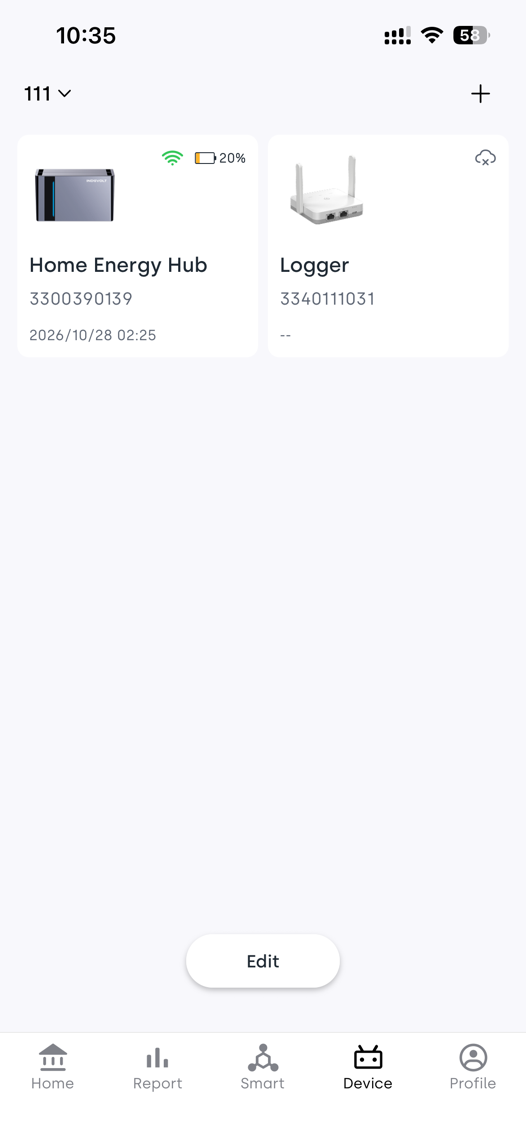
Step 1: Open the device page
Tap Device on the bottom tab bar, then tap the micro-storage device card (e.g. "Home Energy Hub").
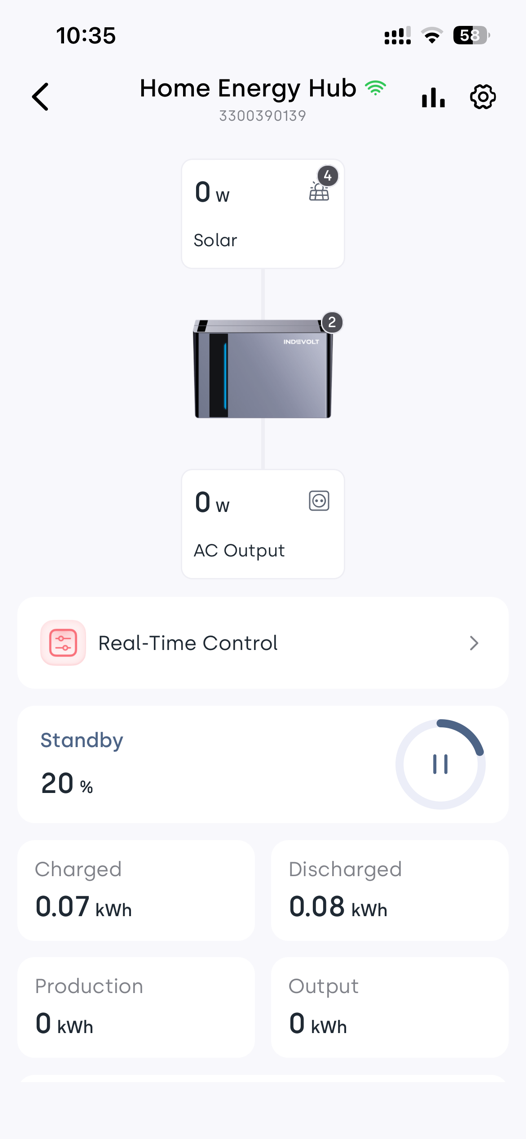
Step 2: Open device settings
On the device detail page, tap the gear icon in the top right.
Left: device list. Right: device detail, gear icon in the top right. Device names and data in the screenshots are UI examples only.
5. Find and Enable Peak Shaving
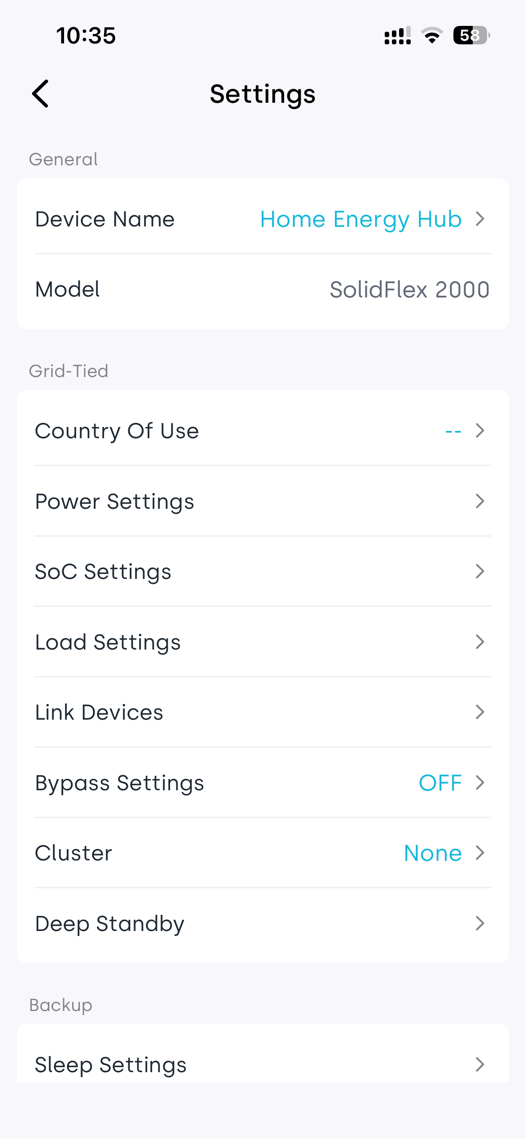
Step 3: Open Power Settings
On the device Settings page, tap Power Settings. If you have not selected a smart meter yet, you can enter Load Settings on the same page to complete the selection.
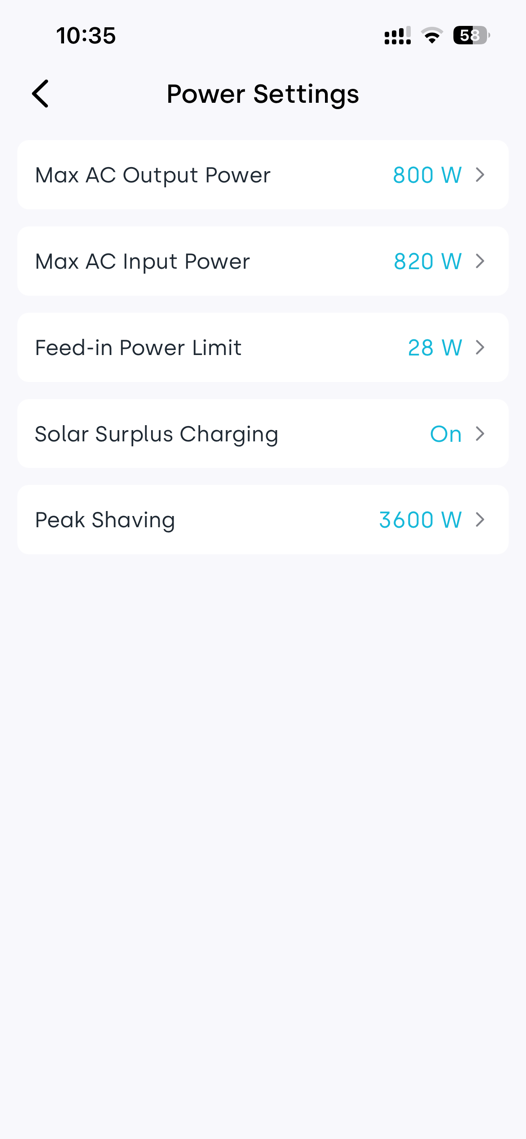
Step 4: Enter Peak Shaving
On the Power Settings page, tap Peak Shaving. Once inside, the page title shows "Peak Shaving"; enable the Peak Shaving toggle on that page.
Left: Settings page, containing "Power Settings" and "Load Settings". Right: Power Settings page; tap "Peak Shaving" to enter.
6. Set the Peak Power Limit
Step 5: Set the grid import power you want to control
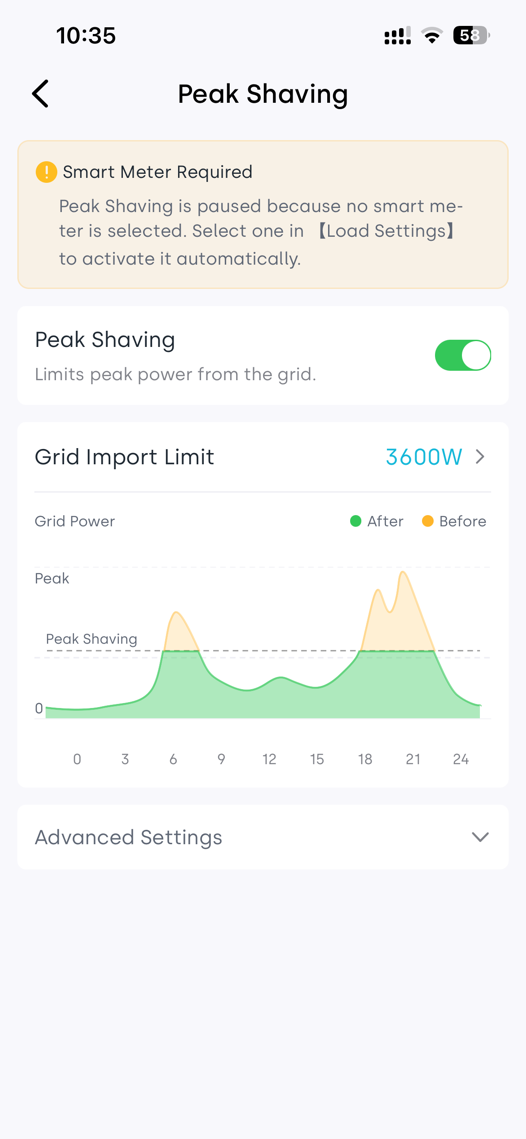
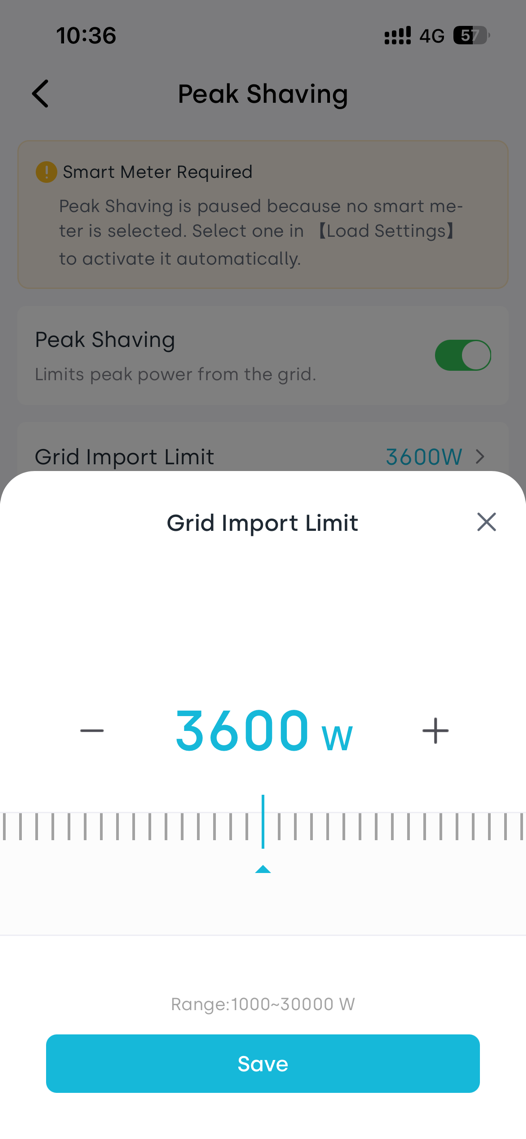
On the Peak Shaving page, tap Grid Import Limit. In the popup, adjust the value with the minus/plus buttons or the slider, then tap Save. The adjustable range is 1000–30000 W, default 3600 W. This is the parameter range; the actual effect is still limited by the device's discharge capability.
For example, setting 3600 W means control starts when grid import reaches or exceeds 3600 W for 5 seconds; following the logic above, the control target is about 3400 W. Before setting, consider your bill peaks, loads and battery capability; do not treat the default as suitable for every household.
Left: Peak Shaving main page. Right: Grid Import Limit popup; tap "Save" at the bottom after adjusting. The yellow warning at the top indicates the meter has not been selected; an enabled toggle does not mean the feature is already active.
7. Set Active Hours and Reserved Energy
Step 6: Set the active time
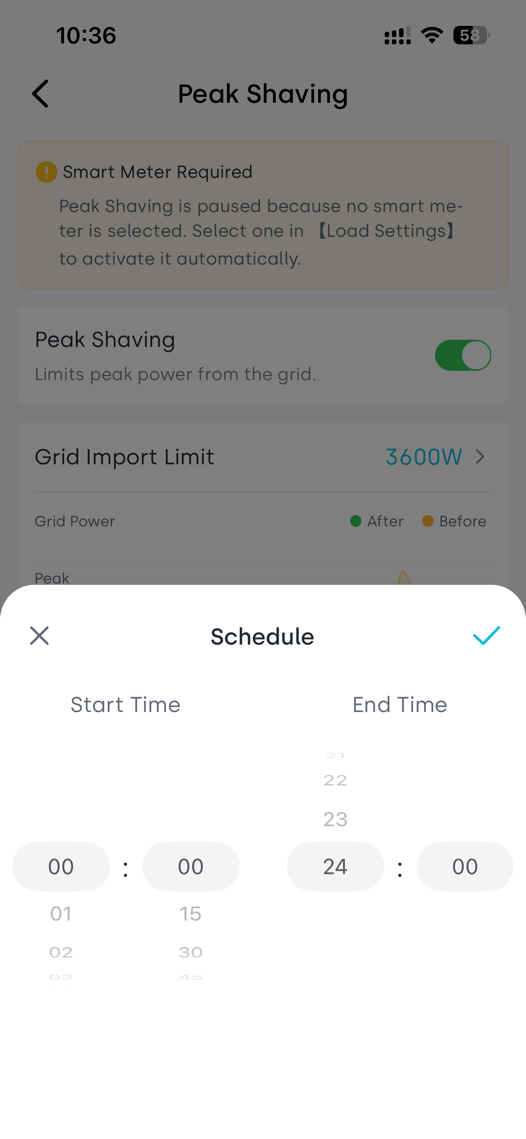
Expand Advanced Settings, tap Schedule, choose the start time and end time, then tap the checkmark in the top right. The 00:00–24:00 in the screenshot means all day. For the Flanders capacity charge example below, a monthly peak can occur at any time, so all-day coverage helps avoid unmanaged windows; just make sure the battery has enough available energy.
Step 7: Set the Peak Shaving Reserve
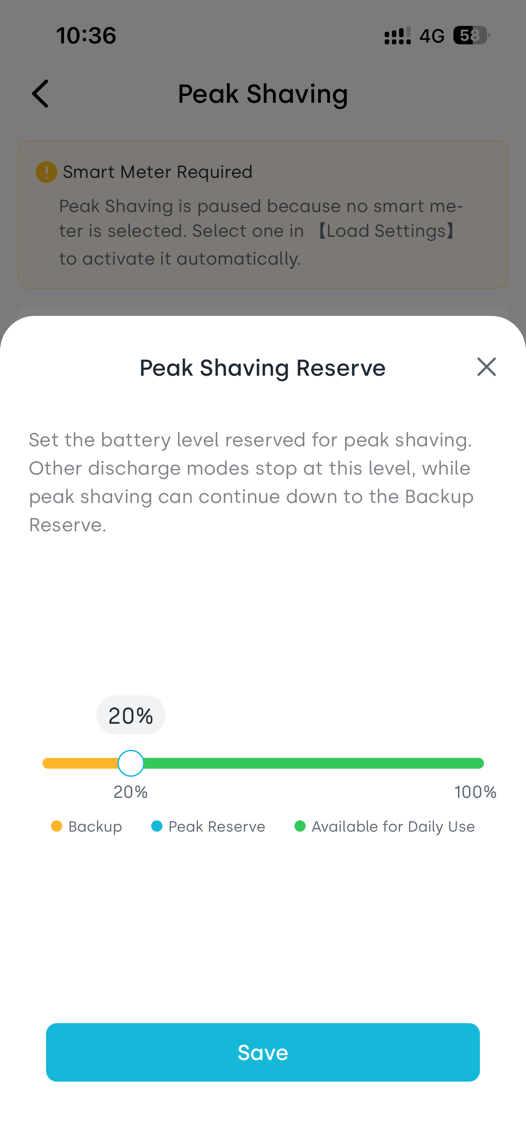
Tap Peak Shaving Reserve, drag the slider, then tap Save. This setting is the Peak Shaving SOC; the adjustable range goes from the Backup Reserve to 100%. For example, set 30% with Backup Reserve at 10%; the energy between the two is reserved for Peak Shaving. If you do not want an extra reserved range, set it equal to the Backup Reserve. The 20% in the screenshot is a UI example only.
Left: Schedule. Right: Peak Shaving Reserve. After setting, return to the main page and check the toggle, power, time and reserve energy, and confirm the meter warning has disappeared.
How to verify: When SOC is above the Peak Shaving SOC, meeting the trigger condition should pause the current mode and prioritize peak shaving. Once in the reserved range, other modes do not discharge without a peak request. Peak Shaving can continue discharging down to the Backup Reserve; the original mode resumes after recharging to Peak Shaving SOC + 2 percentage points.
8. How a Belgian Household Reduces Bills with Peak Shaving
Applicable scenario: households with a digital meter in Flanders
Grid billing rules differ across Belgian regions. This example uses the Flemish capacity tariff (capaciteitstarief), which is part of the grid fee. It is not a fine triggered by exceeding a single universal power cap, and it is not the whole electricity bill.
Digital meters record consumption every 15 minutes and convert it to average import power; the highest value each month becomes the monthly peak. The average monthly peak is the average of the monthly peaks over the previous 12 months, and the final billed peak is further weighted over the settlement period. The minimum billing threshold is 2.5 kW; going lower usually does not reduce this part of the fee further.
Example household and settings
Assume an Antwerp household, no PV supply in the evening, several appliances running at the same time. Without peak shaving, average grid import during one 15-minute interval is 6.0 kW. The battery is full and its sustained discharge power meets the need. The household sets the power limit to 3600 W, active time all day, Peak Shaving Reserve 30% and Backup Reserve 10%. These are example settings, not universal recommendations.
During control, the target grid import is about 3.4 kW. If the household load stays at 6.0 kW, the battery needs to supply about 2.6 kW; supplying it for 15 minutes continuously requires about 0.65 kWh, excluding losses. The battery must meet both the discharge power and the available energy requirement.
If the battery nominal capacity is 5 kWh, the band between 30% and 10% corresponds to about 1 kWh of nominal reserved energy. The actual usable amount is affected by losses, temperature and battery state; if several peaks occur in one day, the reserved energy may run out.
Why the fee estimate uses 3.6 kW
The 3.4 kW control target and the meter's 15-minute average are not the same thing. Considering the 5-second trigger and power fluctuation, this example assumes the actually measured monthly peak is held to 3.6 kW, rather than treating 3.4 kW directly as the billing result. It also assumes no higher peak occurs in any other interval of the month.
If a 6.0 kW peak has already been recorded that month, enabling control afterward cannot delete that record. It helps avoid higher peaks and lowers peaks in later months. One unmanaged window after the battery runs out can also push the monthly peak back up.
9. Savings Calculation for the Belgium Example
Using the official 2026 Antwerp tariff
Fluvius Antwerpen's 2026 low-voltage peak metering tariff lists the capacity charge for the "average monthly peak" at 49.4036563 EUR/kW/year, excluding VAT. This example uses 49.40 EUR; this rate applies only to this region and year. Other regions should use the local bill or official tariff.
For comparison, the following assumes historical monthly peaks and the whole settlement period have stabilized at the corresponding level, giving billed peaks of 6.0 kW and 3.6 kW respectively. The first month after enabling the feature is not treated as a full-year effect.
| Comparison | Without peak shaving | With peak shaving |
|---|---|---|
| Stabilized billed peak | 6.0 kW | 3.6 kW |
| Annualized capacity fee (excl. VAT) | 6.0 × 49.40 = 296.40 EUR | 3.6 × 49.40 = 177.84 EUR |
| Capacity fee difference (excl. VAT) | Comparing the two cases | About 118.56 EUR/year |
This means that under the stabilized conditions above, the annualized difference in the capacity-fee part is about 119 EUR. It is not an immediate cash saving, nor the total electricity bill. The actual net benefit must also account for battery charge/discharge losses, charging source, electricity price and battery wear.
How to tell whether your settings are working
Check the 15-minute import values and monthly peak in Mijn Fluvius, and confirm whether the month's highest value has dropped. The instantaneous power in the App only helps observe the control process; billing follows the meter and bill data.
If the peaks of the past 11 months were all 6.0 kW and only the latest month dropped to 3.6 kW, the average monthly peak over these 12 months is 5.8 kW, not 3.6 kW. As later low-peak months gradually replace the historical high peaks, the bill effect appears step by step; the exact amount follows the supplier's settlement.
Sources and verification date
Verified on 22 October 2026. Tariff rules follow the latest local announcements and your contract.
- Fluvius capacity charge calculation and bill explanation: https://www.fluvius.be/nl/factuur-en-tarieven/capaciteitstarief/gezinnen-en-kleine-ondernemingen/op-mijn-factuur
- Fluvius capacity charge FAQ and minimum threshold: https://www.fluvius.be/nl/veelgestelde-vragen/capaciteitstarief-gezinnen-kleine-ondernemingen
- Vlaamse Nutsregulator official 2026 Antwerp tariff table: https://assets.vlaamsenutsregulator.be/2025-11/FA%20-%202026%20-%20ELEK.pdf