LoRa Connection Guide
What is LoRa
LoRa (Long Range) communication is a low-power, wide-area network (LPWAN) wireless communication technology based on spread spectrum technology. Its core is spread spectrum modulation. By “spreading” the signal across a wider frequency bandwidth for transmission, it achieves strong interference resistance and high receiver sensitivity.
Simply put, LoRa is a technology that enables “long-distance wireless communication” between devices. Unlike commonly used Wi-Fi or Bluetooth, it does not rely on a home network and does not require complex setup—it's like having a dedicated wireless channel built into devices for transmitting information.
With LoRa, devices can automatically exchange information. For example, a meter can send household electricity consumption data to a micro energy storage device, which then automatically adjusts its charging and discharging status based on this data. The entire process runs automatically in the background, and you will hardly notice it.
Key Features
- Ultra-long range: In ideal environments (such as suburban or open areas), communication distance can reach 10–20 km or even farther.
- Ultra-low power consumption: Devices using LoRa (such as sensors) can have battery life of several years or even up to a decade.
- High capacity: A single base station (gateway) can connect thousands of terminal nodes.
- Low cost: Relatively low cost for modules and network deployment.
Differences Between LoRa and Wi-Fi
You can think of Wi-Fi as the high-speed network at home, used for internet access and video streaming. It is fast but consumes more power, and once the network is down, many devices may stop working.
LoRa, on the other hand, is designed for transmitting small amounts of data, such as power consumption or device status. It is not fast, but it can transmit over longer distances, is very power-efficient, and does not rely on a home network. Even if the internet is down, device communication is not affected.
In simple terms, Wi-Fi is for internet access, while LoRa allows devices to communicate with each other, making the system smarter and more reliable.
Applicable Scenarios
- Locations with poor network conditions or insufficient Wi-Fi coverage, such as basements or attics
- Environments with strong interference, such as server rooms or power stations
Supported Devices
If the device firmware version is lower than the minimum version listed in the table below, please upgrade the firmware in the INDEVOLT App under the device settings page.
| Device | Model | Minimum Firmware Version |
|---|---|---|
| Micro Storage | SolidFlex 2000 | CMS: V1406.07.002B |
| Smart Meter | MR1-D5-WR | V1.4.09_R00B.082_M051A_00000037 |
| MR3-D5-WR | V1.4.09_R01C.0D2_M0515_00000016 | |
| IR Reader | NIR-3 | V1.4.09_R016.082_M0000_0000001E |
Operation Steps
Connect LoRa Terminal Device
Please ensure the following conditions are met:
- The micro energy storage device has been added in the INDEVOLT App and is powered on and online
- The LoRa-supported terminal device has been installed and powered on
-
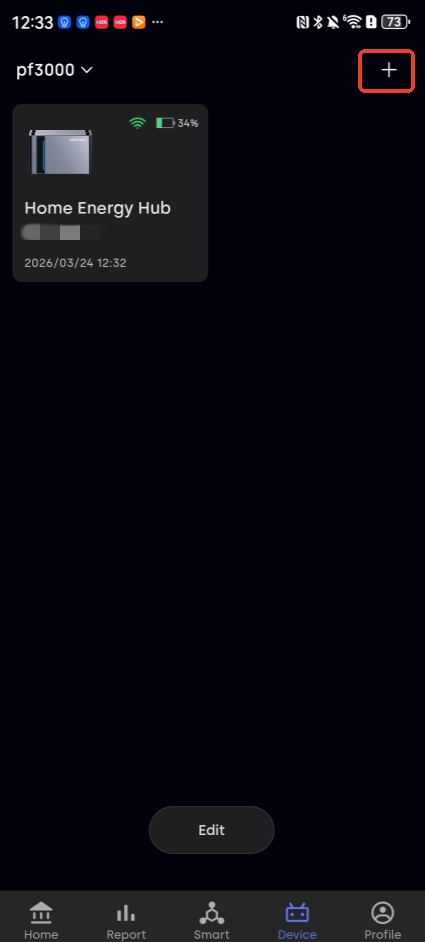
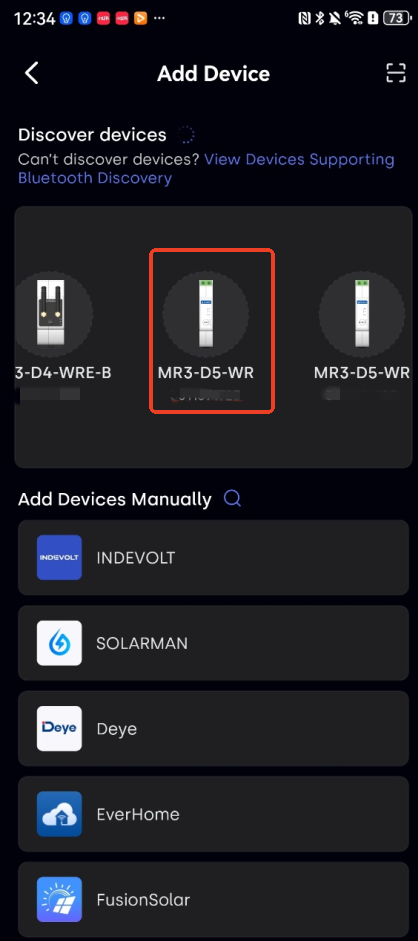
Open the INDEVOLT App, go to the device page, tap “+” in the top right corner, and select the device to add (taking a meter as an example).
-
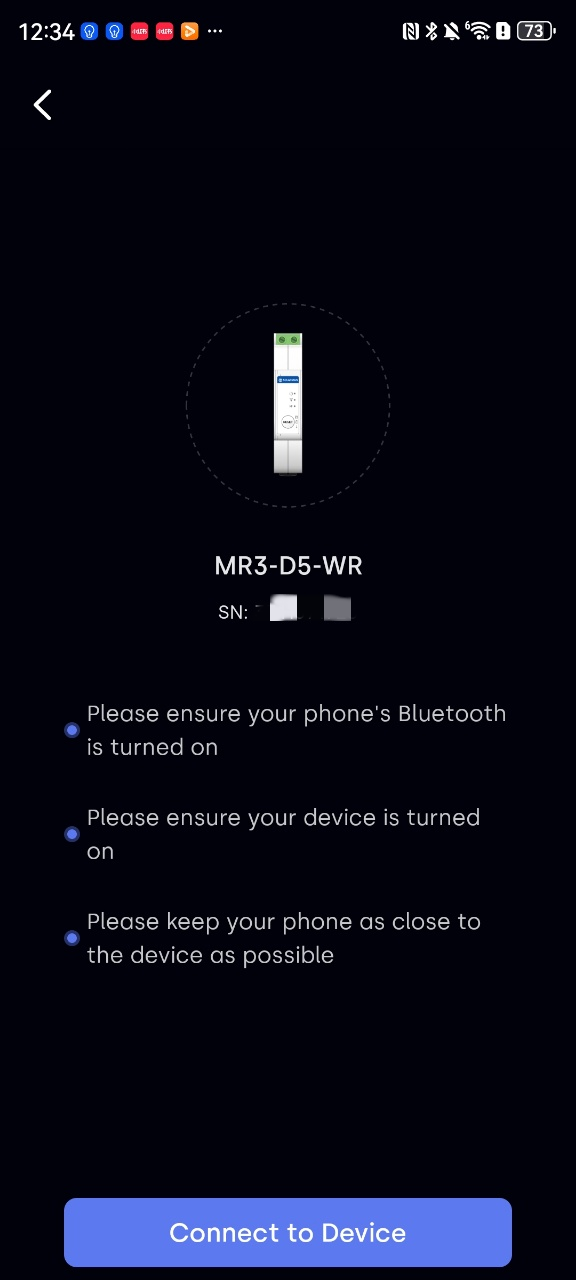
Scan the QR code on the meter. After successful recognition, tap Connect to Device.
-
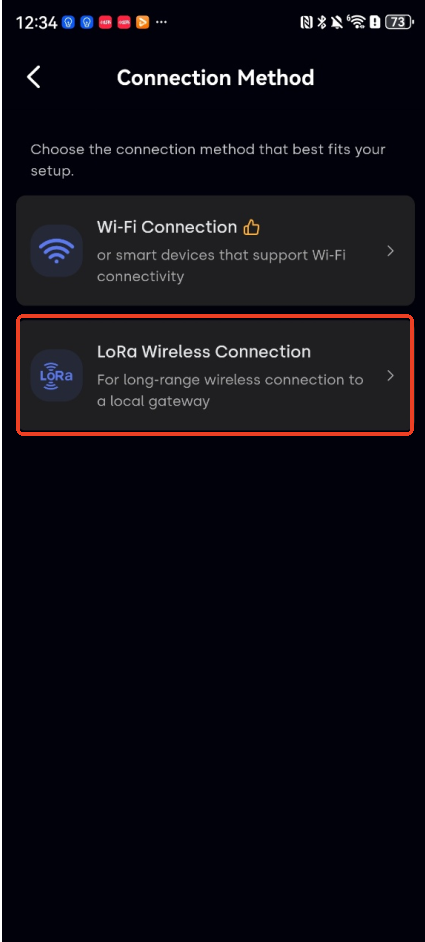
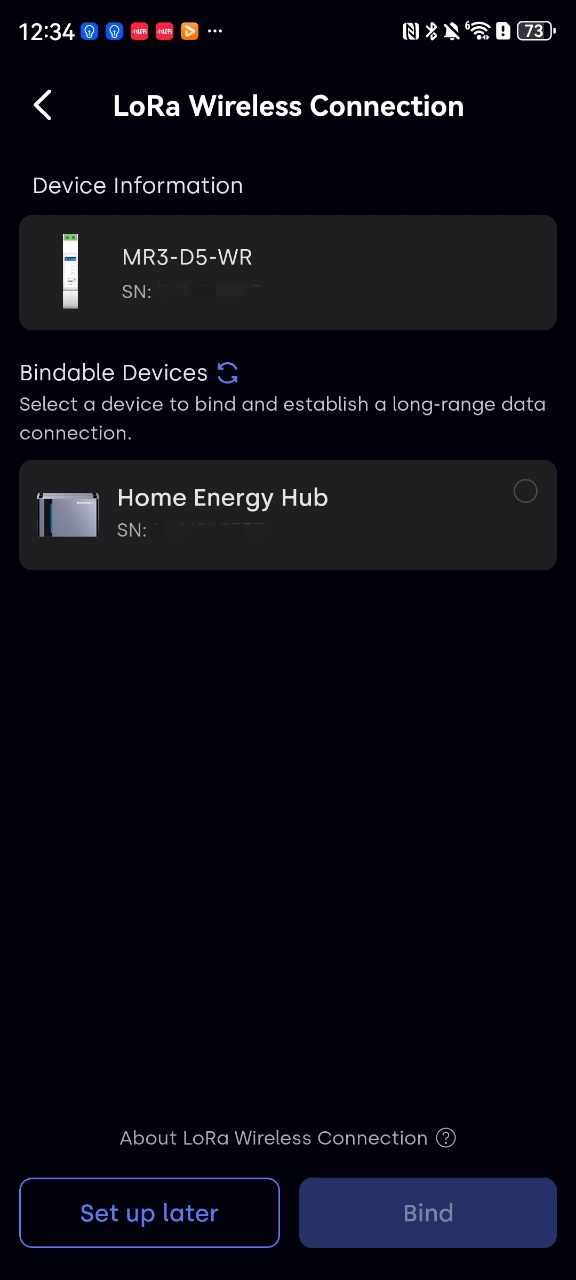
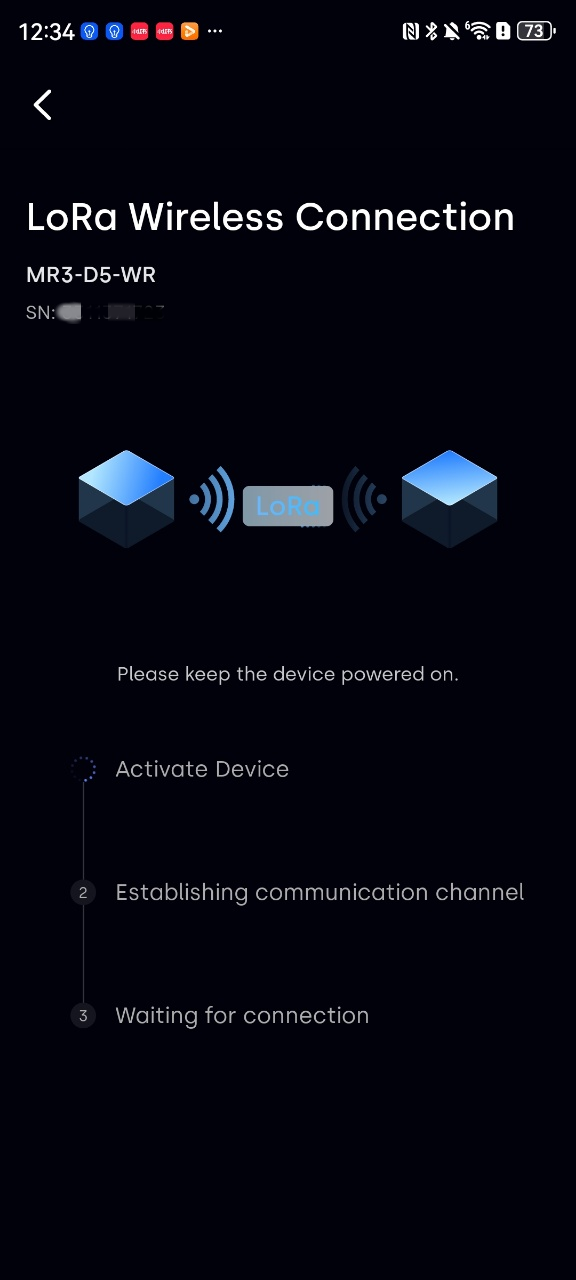
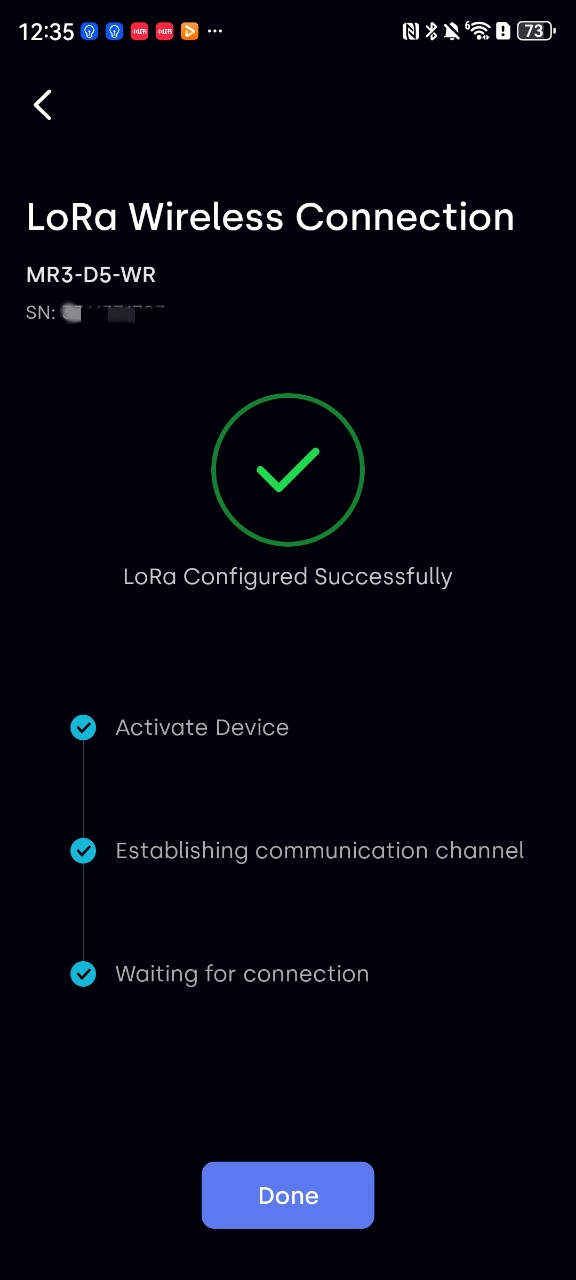
Select LoRa Wireless Connection as the connection method, then choose the micro energy storage device to bind, tap Bind, and wait for the connection to complete.
-
Check whether the connection is successful
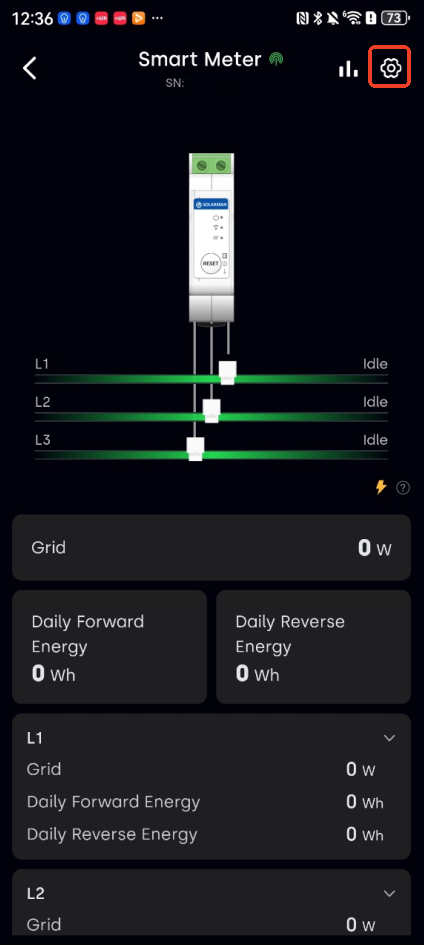
Go to the device page, tap the meter, enter the details page, then tap the settings icon in the top right
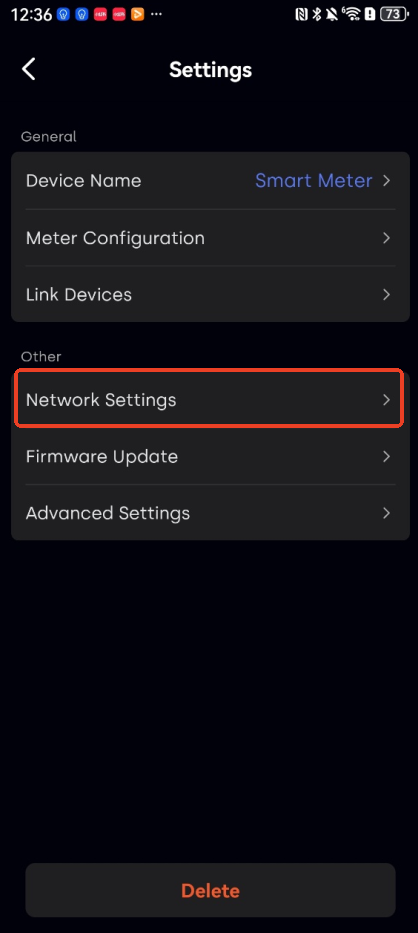
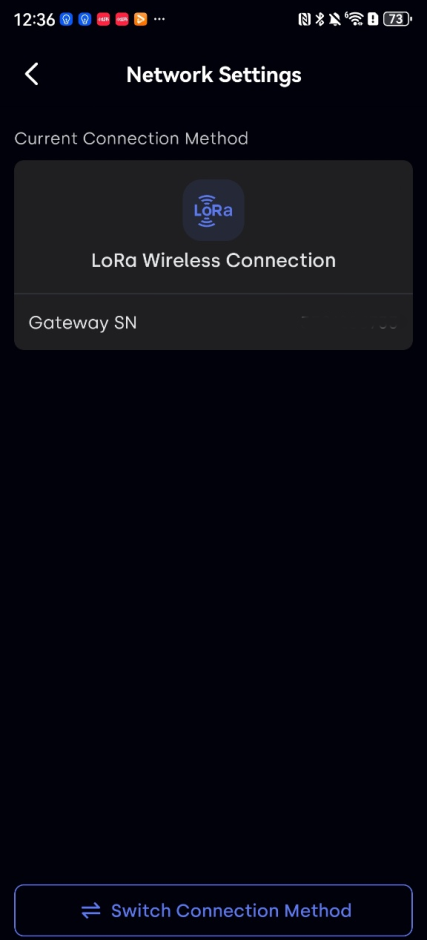
 . Select Network Settings and check whether the current connection method is LoRa Wireless Connection.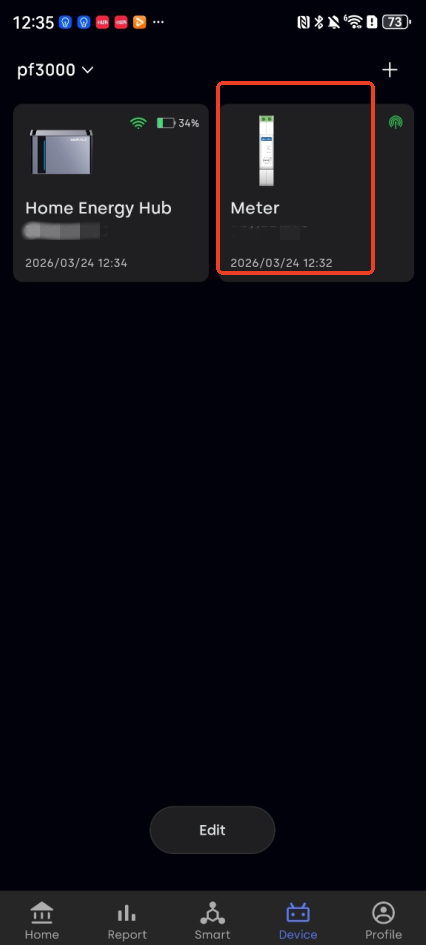
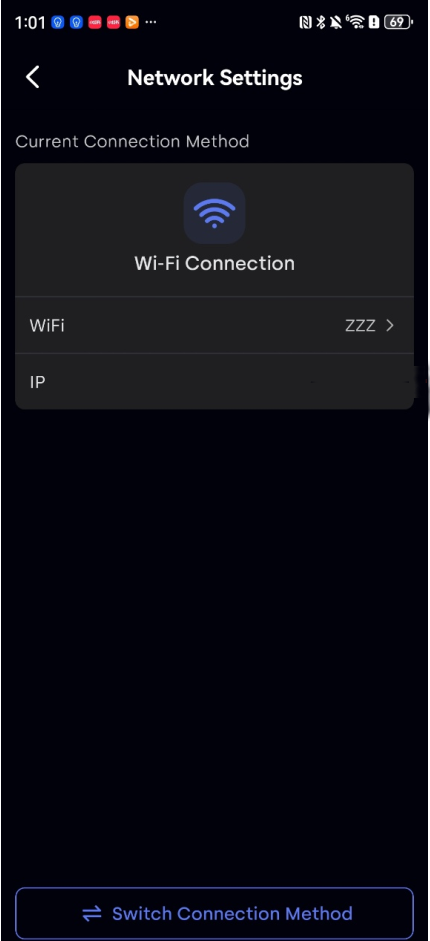
In addition, the icon in the top right corner of the device card in the device list will also indicate the current connection method (Wi-Fi or LoRa).
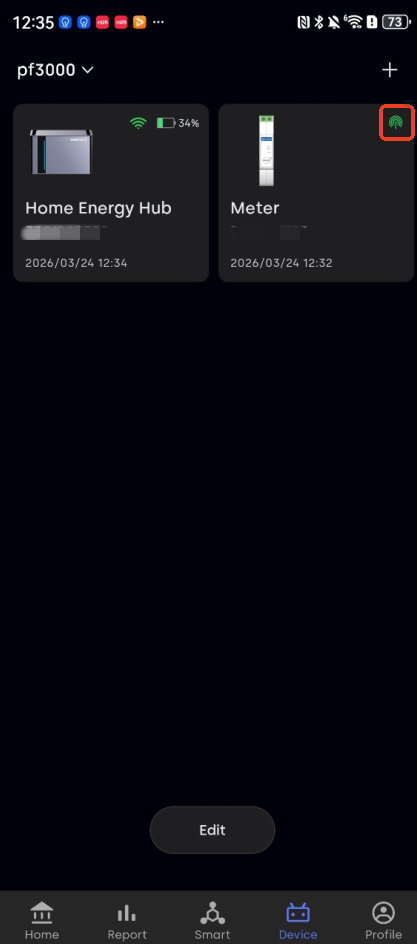
Switch Connection Method (Wi-Fi/LoRa)
To switch the connection method, follow these steps:
-
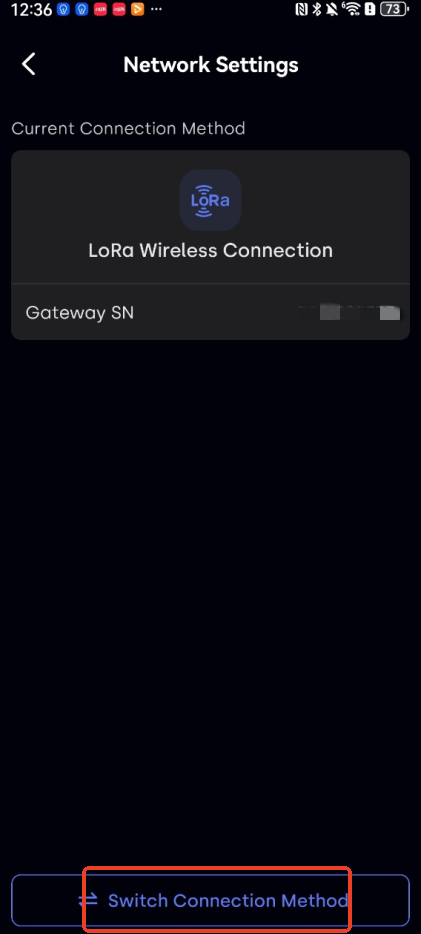
On the device page, tap the meter. After entering, tap the settings icon in the top right
, select Network Settings, and tap Switch Connection Method at the bottom of the page.
-
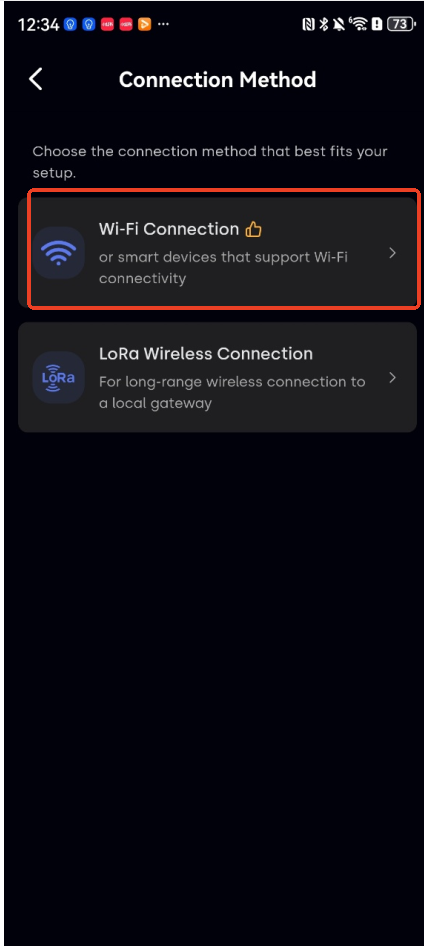
Tap Connect to Device and select Wi-Fi Connection.
-
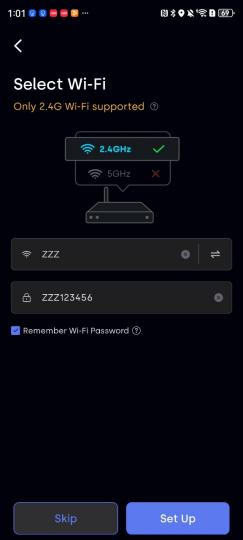
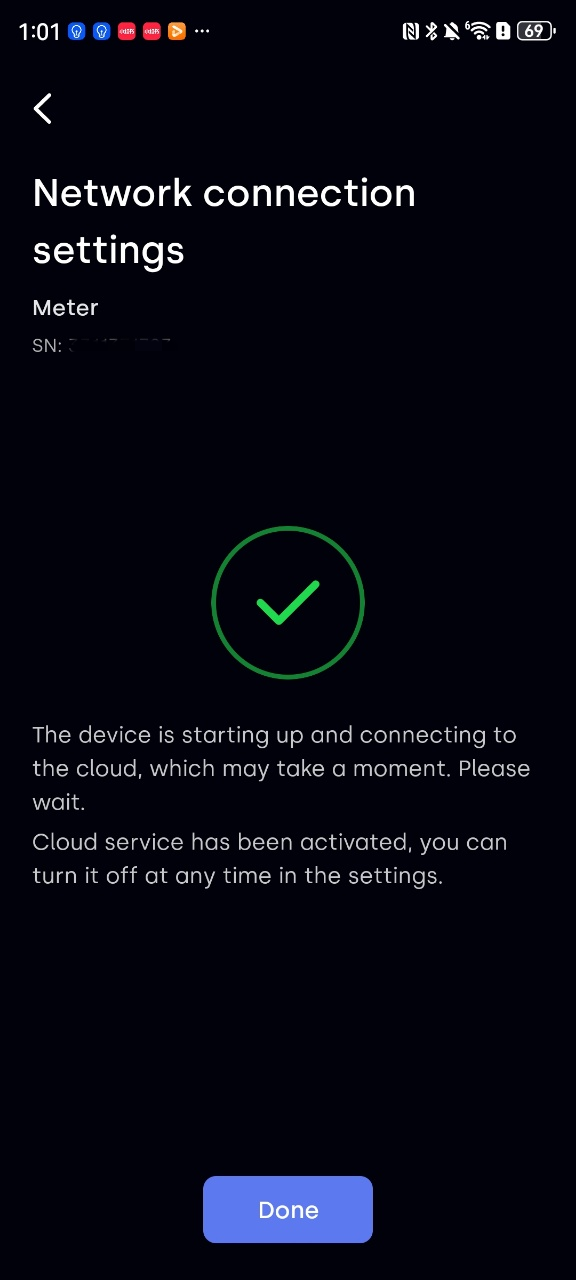
Select the Wi-Fi network to connect to, complete the configuration, and wait for a successful connection.
-
Return to the device details page and check in Network Settings whether the current connection method has changed to Wi-Fi.