MQTT Overview
MQTT (Message Queuing Telemetry Transport) is a lightweight messaging protocol based on the Publish/Subscribe model. It is widely used for real-time data exchange between IoT devices.
INDEVOLT energy storage devices support communication with third-party systems through MQTT, which can be used for:
- Real-time monitoring of device status
- Receiving device events and alarms
- Sending device control commands
- Integrating with Home Assistant, EMS, or other energy management platforms
MQTT is especially suitable for scenarios with a large number of devices, limited network bandwidth, or requirements for real-time communication.
1. How It Works
MQTT uses a publish/subscribe communication model. All clients communicate through an MQTT Broker instead of sending messages directly to each other.
| Component | Role | Description |
|---|---|---|
| App / HEMS / PC | MQTT Client | Connects to the Broker, subscribes to device data, or sends control commands |
| MQTT Broker | MQTT Broker | Message server responsible for receiving, filtering, and forwarding MQTT messages |
| INDEVOLT Energy Storage | MQTT Client | Connects to the Broker, uploads device data, and receives control commands |
Communication process:
- The energy storage device connects to the MQTT Broker. TLS/SSL encrypted communication can be used according to the Broker configuration.
- The device actively publishes operating data to the Broker.
- The App or third-party system subscribes to the corresponding Topics.
- The MQTT Broker receives published messages and forwards them to all subscribers.
- Users can publish control commands to the specified Topic.
- The device receives the command and performs the corresponding operation.
2. Supported Devices
This feature is available for devices that support MQTT:
| Model | Minimum Supported Firmware Version |
|---|---|
| PowerFlex 2000 PowerFlex 2000 Eco SolidFlex 2000 SolidFlex 2000 Eco | CMS: V140C.0B.0036 EMS: V1.01.08 |
| PowerFlex 3000 AC PowerFlex 3000 Hybrid SolidFlex 3000 AC SolidFlex 3000 AC Pro SolidFlex 3000 Hybrid Pro | CMS: V140C.09.3036 |
| SolidFlex 1200 | CMS: V140B.09.2036 |
3. Getting Started
3.1 Prerequisites
Before using MQTT, ensure that:
- ✅ The device is powered on properly
- ✅ The device is connected to the network
- ✅ The device supports MQTT functionality
3.2 Enable MQTT
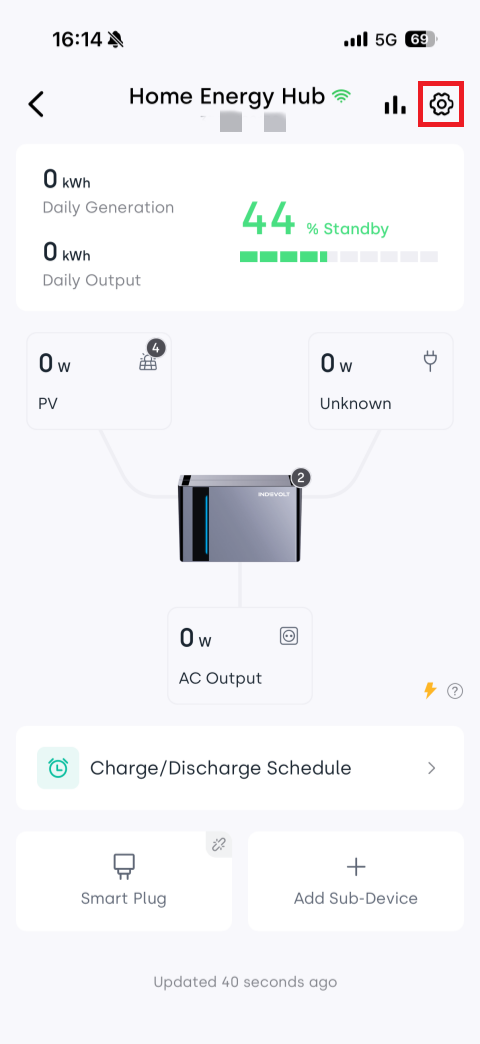
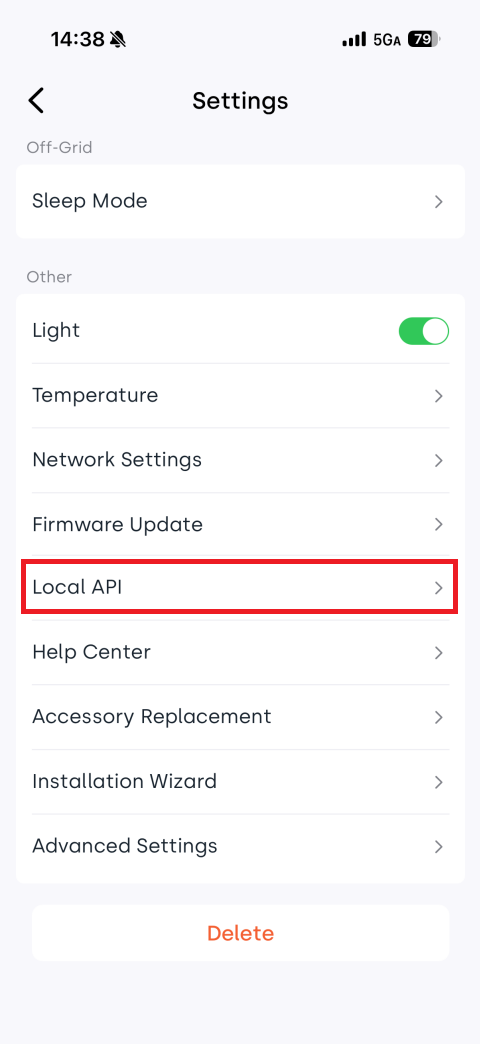
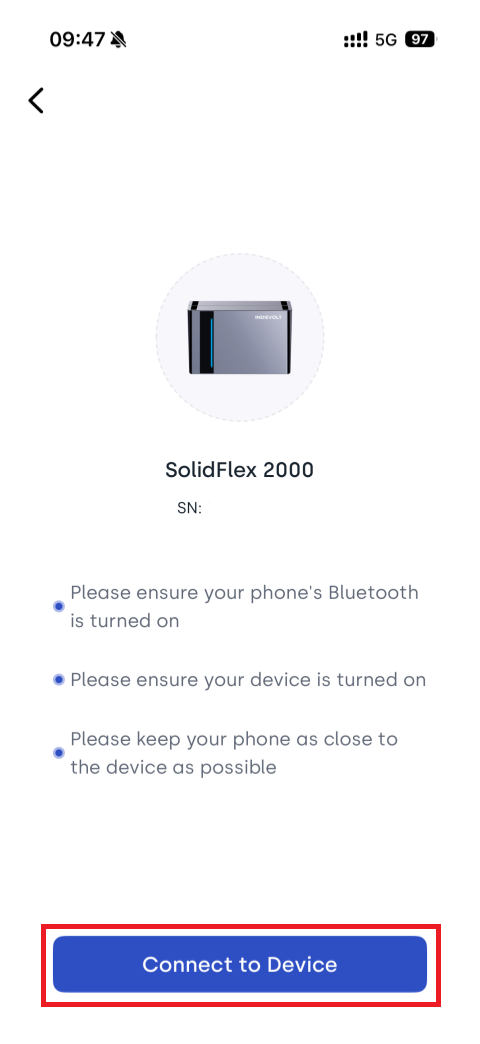
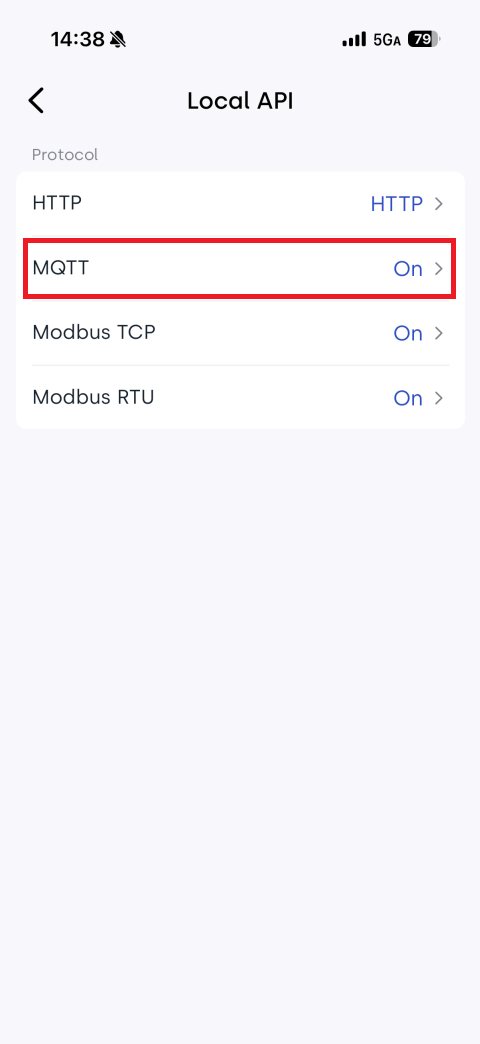
MQTT is disabled by default. Enable MQTT manually in the App and configure the MQTT Broker information.
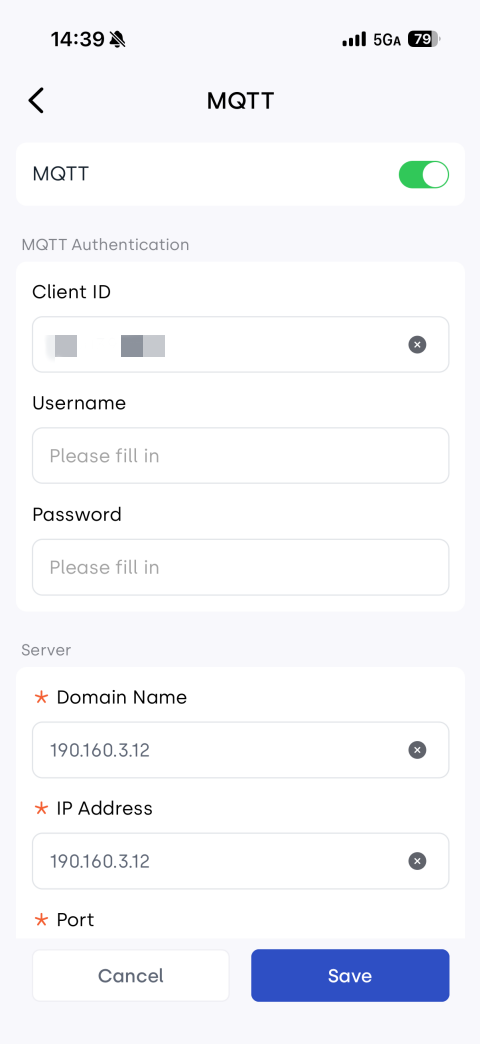
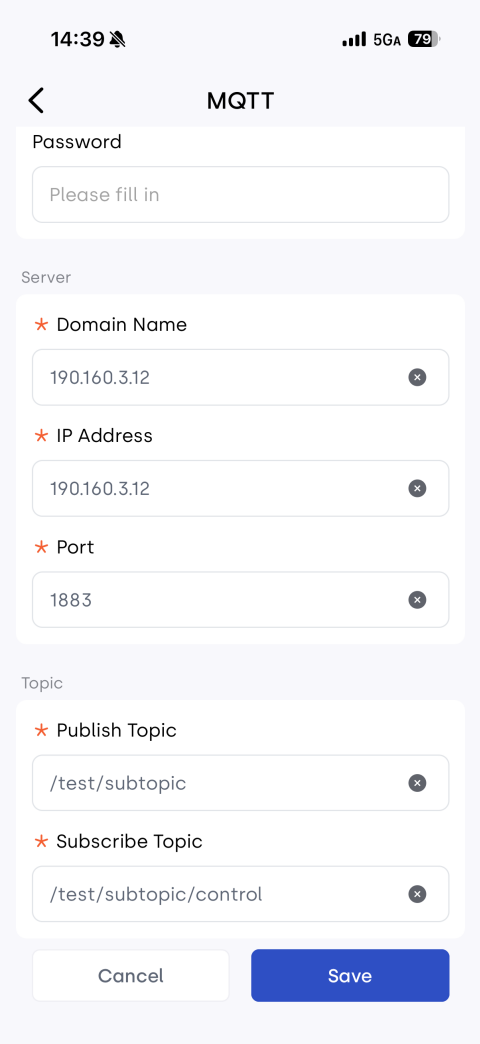
3.3 MQTT Connection Parameters
| Parameter | Description |
|---|---|
| Broker Address | MQTT Broker address, which can be a local server IP address or a cloud server address |
| Port | 1883 (non-encrypted) / 8883 (TLS/SSL encrypted) |
| Client ID | Uses the device serial number (SN) by default |
| Username | MQTT login username, empty by default and supports customization |
| Password | MQTT login password, empty by default and supports customization |
| TLS | Whether to enable TLS encryption |
| CA Certificate | CA certificate used in TLS mode (if required) |
| Keep Alive | 60 seconds by default |
4. Topic
A Topic is used to identify the category and routing path of MQTT messages. It is similar to a file system path (for example: energy/device1/soc). The MQTT Broker forwards messages to corresponding subscribers based on the Topic.
MQTT supports subscribing to a single Topic or using wildcards for batch subscriptions.
| Wildcard | Description | Example |
|---|---|---|
+ | Matches a single level | energy/+/socMatches energy/device1/soc and energy/device2/soc.It does not match energy/group/device1/soc because it contains an additional level. |
# | Matches all levels | energy/#Subscribes to all Topics under energy, including energy/device1/soc, energy/device1/power, and energy/device2/status. |
For the complete Topic definition, refer to: MQTT Topic
5. QoS
QoS (Quality of Service) indicates the reliability level of MQTT message delivery.
| QoS | Description |
|---|---|
| QoS 0 | Delivered at most once. Fastest transmission, but delivery is not guaranteed |
| QoS 1 | Delivered at least once. Messages may be duplicated |
| QoS 2 | Delivered exactly once. Highest reliability |
Recommended usage:
- Real-time status data: QoS 0 or QoS 1
- Control commands: QoS 1
6. FAQ
Q: MQTT cannot connect
Check the following:
- Whether the Broker address is correct
- Whether the username and password are correct
- Whether the network connection is normal
- Whether TLS encryption is enabled
Q: Why do I receive no data after subscribing?
Check the following:
- Whether the Topic is correct
- Whether the Topic case matches exactly
- Whether the correct Topic level is subscribed
- Whether the device is online