How to add V2 authorization?
- Update your INDEVOLT APP to V1.4.11 or later.
- The free SolarEdge API plan is 2,000 credits/month, so data updates about every 15 minutes, same as the SolarEdge website.
- According to SolarEdge's official document, V1 will be deprecated on November 1, 2026. If you are still using the V1 API (apiKey + siteId), please add this V2 authorization before November 1, 2026.
1. Create a developer account
Go to developer.solaredge.com and sign in with your homeowner SolarEdge credentials. If you don't have a SolarEdge account yet, sign up to create one. Either way, you'll be prompted to fill in a developer-account profile:
| Field | What to enter |
|---|---|
| Company Name | Your name or a project name (English letters and numbers only, no accents), e.g. "Maya Smith" or "Solar Dashboard Project" |
| Industry type | "Other / Hobbyist" is fine |
| Expected monthly API usage | "Low — personal project" is fine |
You're now the Account Admin of a fresh developer account with the Free tier auto-provisioned (2,000 credits/month, 10 CPM, 1 app). Your homeowner account stays untouched.
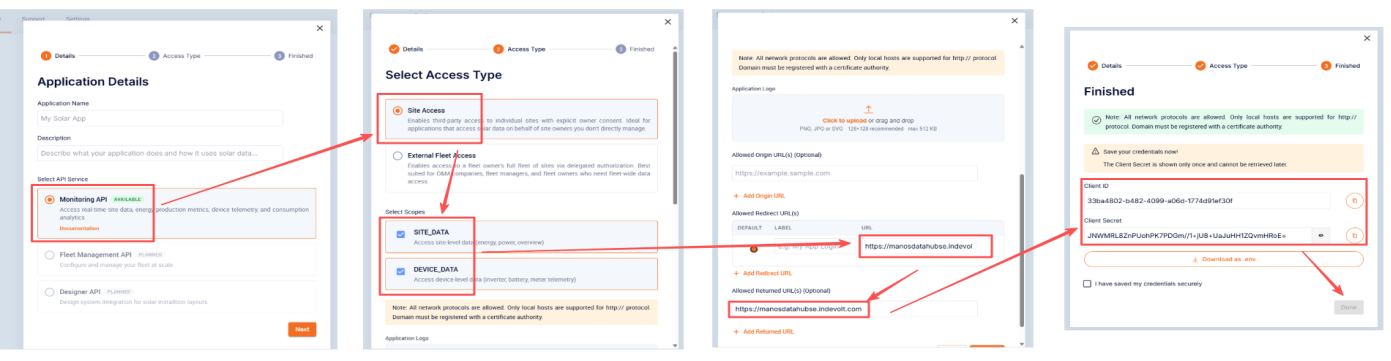
2. Create an application to get CLIENT ID and CLIENT SECRET
| Setting | Value |
|---|---|
| API Service | Monitoring API |
| Access Type | Site Access |
| Scopes | SITE_DATA and DEVICE_DATA |
| Allowed Redirect URL(s) | https://manosdatahubse.indevolt.com |
| Allowed Returned URL(s) | https://manosdatahubse.indevolt.com |
Then you will get your CLIENT ID and CLIENT SECRET. Copy and save them locally.
3. Add V2 authorization from INDEVOLT app
In the INDEVOLT APP, click in order: Home → Add device → SolarEdge → Add Access to start authorizing:
- Enter the CLIENT ID and CLIENT SECRET from your application
- Click the Bind button, you will be redirected to SolarEdge's page
- Enter your SolarEdge email and password to sign in
- After signing, click the Approve button to authorize
- If you can see a page containing
{"result": true, "message":"OK"}, then the authorization is successful!
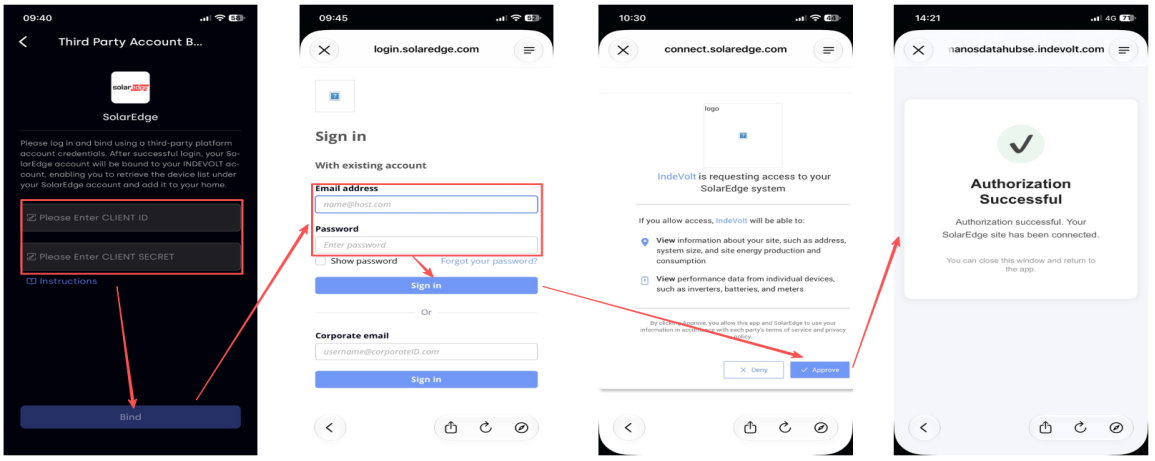
If you can't see the page with the Approve button after signing in, go back to the INDEVOLT app and click Bind again — then you will see the page with the Approve button.
If you see an error on the last page, find your error code below:
| Error code | Typical cause | Solution |
|---|---|---|
| 400 | Network error | Go back to the app and start over by clicking Bind again. |
| 403 | DEVICE_DATA scope is missing | Delete your current SolarEdge application and create a new one that includes the DEVICE_DATA scope. Then go back to the app and authorize again with the new Client ID and Client Secret. |
| 429 | Monthly credit limit reached | Make sure no other service is calling the API, then start the authorization again on the 1st of next month. |
Go back to the INDEVOLT APP, click in order: My Profile → Energy Integrations — you will see SolarEdge is now connected.
Notes
- If you finish the authorization on INDEVOLT first and later regenerate the CLIENT SECRET on the SolarEdge portal, the authorization on INDEVOLT becomes invalid. Deauthorize SolarEdge on INDEVOLT, then authorize again with the latest Client Secret.
- Due to the credit limit, data updates only every 15 minutes during daylight. When first adding SolarEdge inverters, it takes a while before the device becomes available.
- If you have authorized successfully but the device data is not updating, the most likely cause is that you forgot to add the DEVICE_DATA scope. Scopes cannot be modified after creation — you must delete your SolarEdge application and create a new one, then deauthorize SolarEdge in the app and authorize again with the new Client ID and Client Secret.
- Both the Allowed Redirect URL(s) and Allowed Returned URL(s) must be set to
https://manosdatahubse.indevolt.com, otherwise the authorization cannot be completed. - One site with multiple inverters is fine — we can connect all of them. Multiple sites with multiple inverters may hit the 2,000-credit limit and not all devices can be connected normally. We recommend putting different plants under separate SolarEdge monitoring accounts: authorize one account in INDEVOLT, and contact the platform team for the other.