Smart
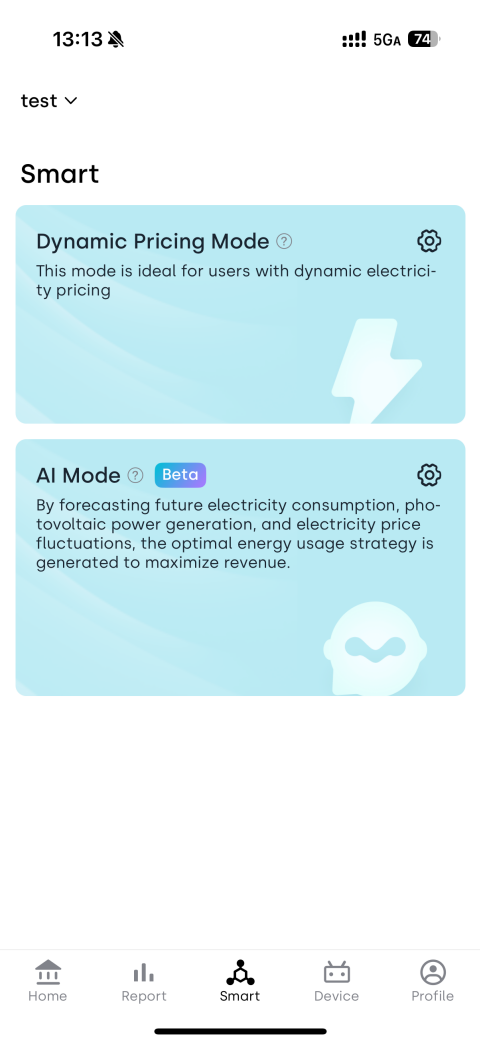
The Smart feature automatically adjusts battery charging and discharging strategies through Dynamic Pricing Mode or AI Mode, making full use of electricity price differences and photovoltaic (PV) generation to improve energy efficiency and increase savings.
1. Dynamic Pricing Mode
Dynamic Pricing Mode uses preset price thresholds to intelligently control when the system charges (at low prices) and discharges (at high prices), helping you maximize returns from price fluctuations.
- Reduce electricity costs
- Improve PV and battery utilization
- Capture more value from price fluctuations
In short: charge when prices are low, discharge when prices are high — fully automated.
- Your home uses dynamic electricity pricing.
- Your home has an INDEVOLT micro energy storage added in the App.
1.1 How the Device Operates
🔋 Charging (Off-Peak Periods)
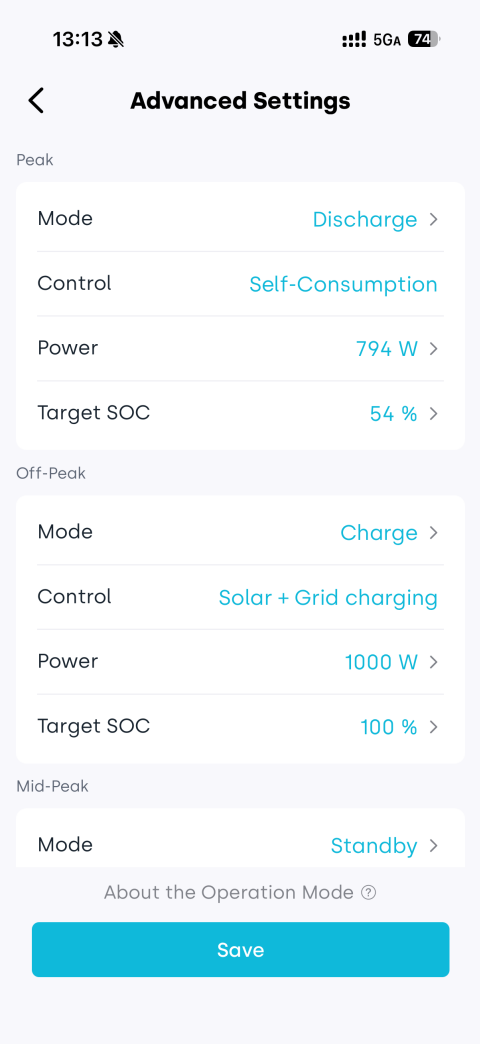
When the electricity price falls below the target price, the system will start charging the battery.
| Mode | Description |
|---|---|
| Solar + Grid charging | Prioritizes PV charging while allowing grid power to assist. Ideal for storing energy during low-price periods. Charging power is capped at the configured limit. Once the battery is full, grid charging stops and PV output is automatically reduced. |
| Solar only charging | Uses only PV to charge the battery. Once fully charged, PV power supplies household loads first, with excess energy fed into the grid within allowed limits. If limits are exceeded, PV output is automatically reduced. |
⚡ Discharging (Peak Periods)
When the electricity price rises above the target price, the system will prioritize using energy stored in the battery. The actual discharge power depends on the current load source (meter, smart plug, or default load).
| Mode | Description |
|---|---|
| Fixed power output | The battery discharges at a constant configured power. If PV microinverters are present, PV supply is prioritized. Output stops when there is no load or when grid limits are exceeded, and the system periodically checks and resumes automatically. |
| Self-consumption | The battery dynamically adjusts output based on real-time household demand, capped at the configured power. Output stops automatically when there is no load or grid limits are exceeded. |
⏸️ Idle (Mid-Peak Periods)
When the electricity price does not meet either the charging or discharging conditions, the system enters standby mode, and the battery will neither actively charge nor discharge.
| Operation Mode | Description |
|---|---|
| Solar powers home first | This mode is used by default for periods not specifically set. 1. PV power is prioritized for household loads. 2. Excess electricity is stored in the battery. 3. Once the battery is full, any remaining electricity is fed to the grid within allowable limits. 4. If generation exceeds grid connection limits, the system will automatically reduce PV output. |
| Solar charges battery first | 1. PV power is prioritized for charging the battery. 2. Once the battery is full, power is supplied to household loads. 3. If excess electricity remains, it is fed to the grid within allowable limits. 4. If generation exceeds grid connection limits, the system will automatically reduce PV output. |
- All power settings are subject to hardware limitations.
- "Grid limit" refers to the maximum allowed export power to the grid.
- In some cases, PV output is automatically reduced to avoid exceeding grid limits. The system will still maintain basic standby consumption.
1.2 Enable Strategy
-
Tap the
 icon in the top-right corner of the Dynamic Pricing Mode module.
 -
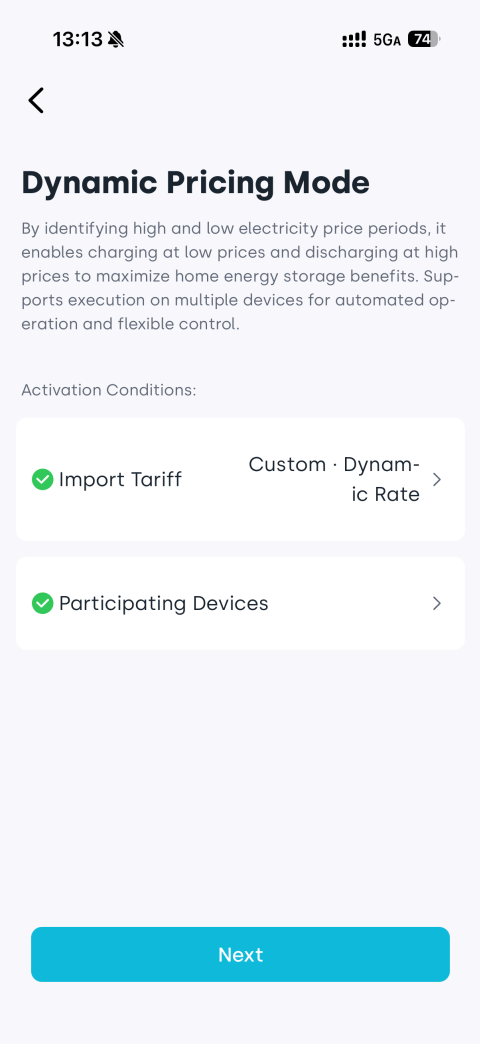
Make sure the following are set up:
✅ Dynamic tariff has been configured
✅ Devices participating in the strategy have been added
If not, complete the setup and tap Next. -
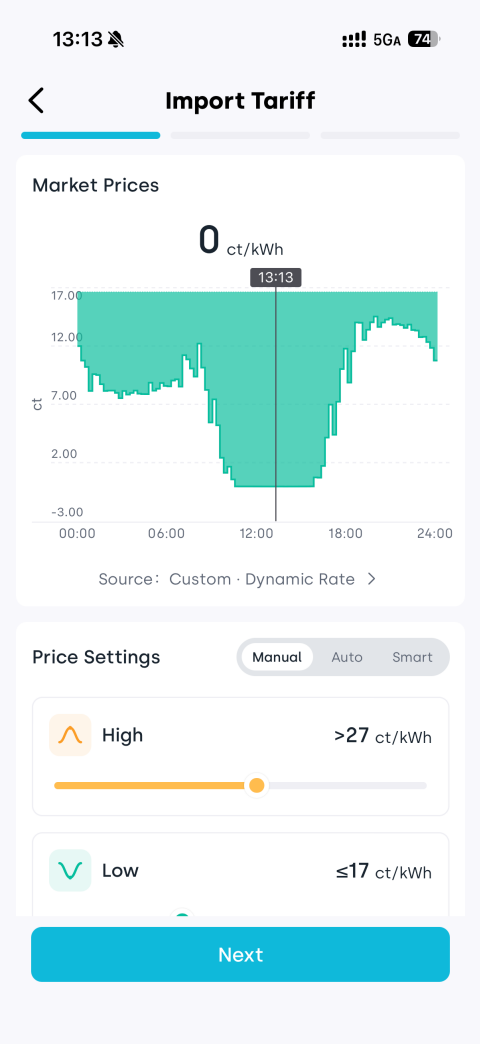
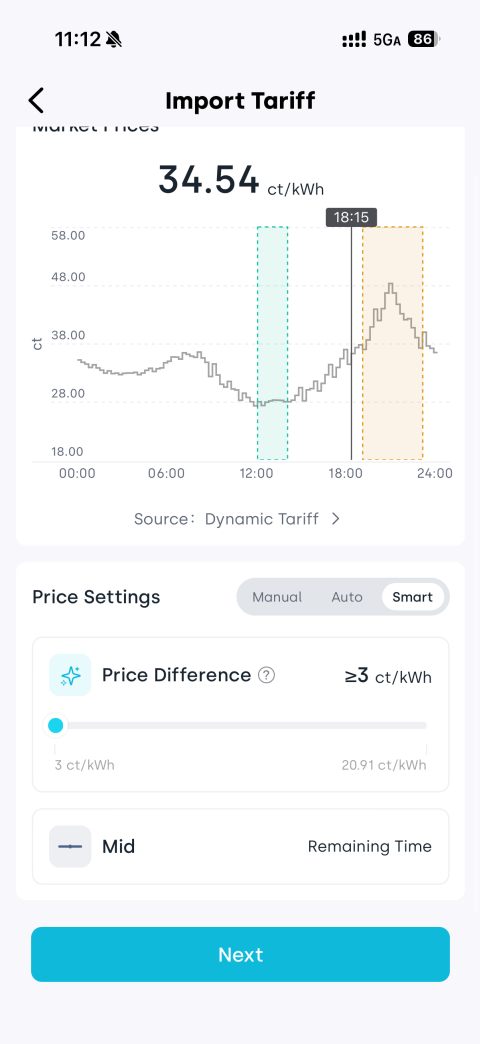
Set the target price to trigger charging/discharging: Manual / Auto / Smart modes are supported; then tap Next.
-
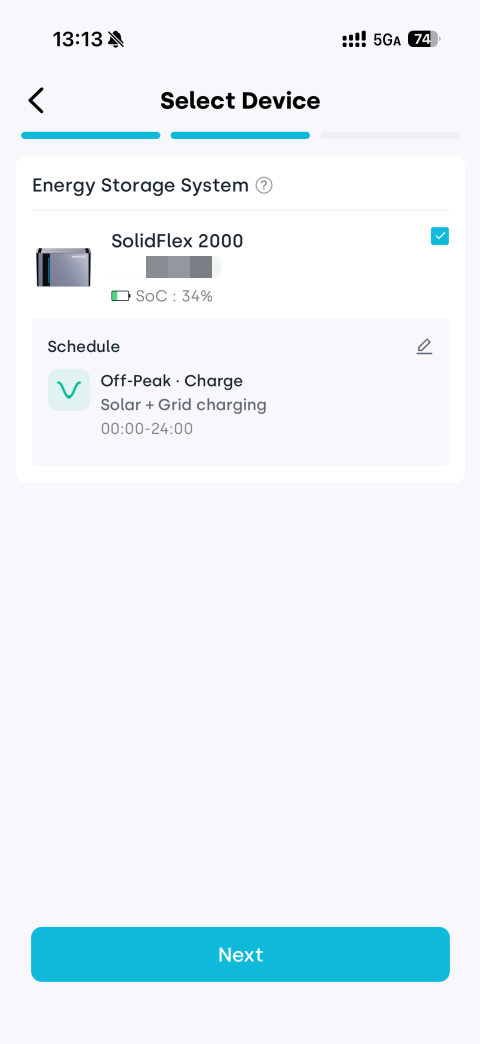
Select the device for the strategy, then tap Next.
(Optional) Tap
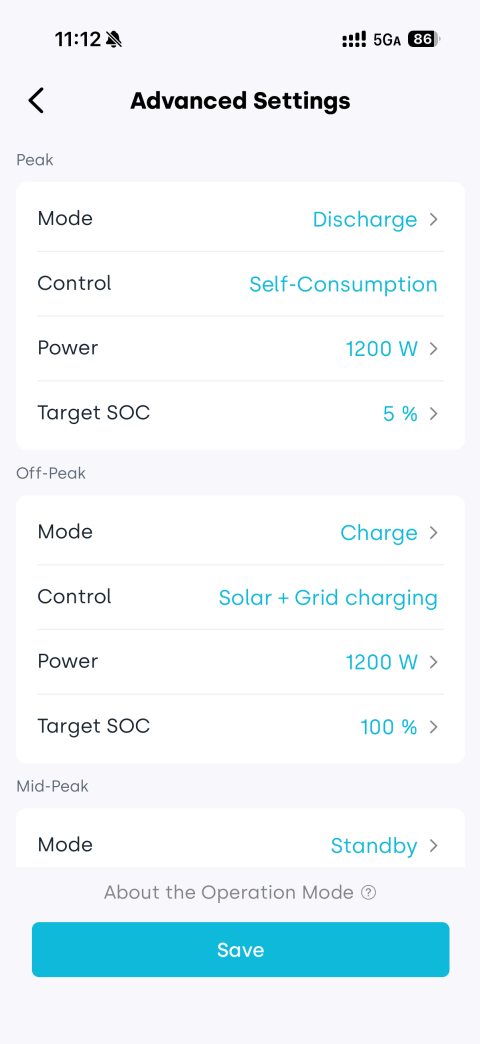
 to configure operating modes for different price periods.
 -
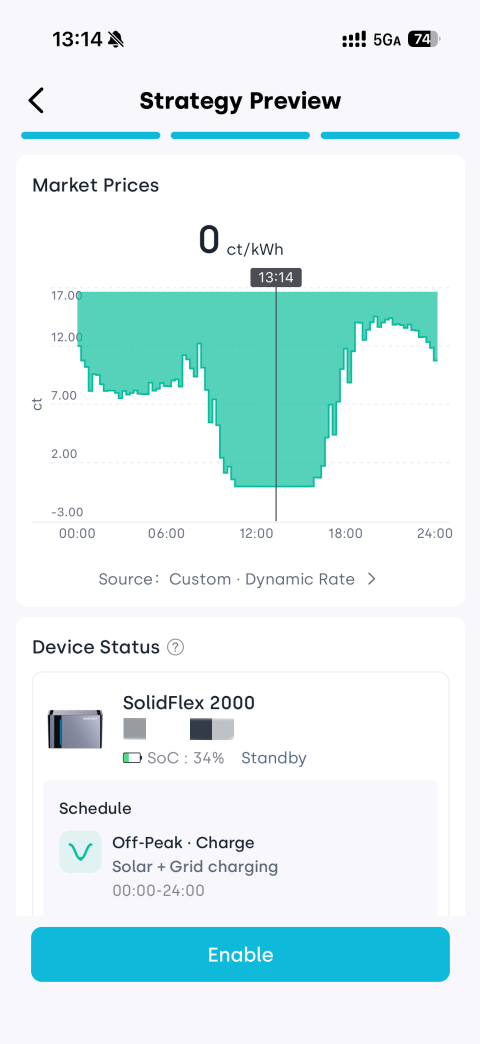
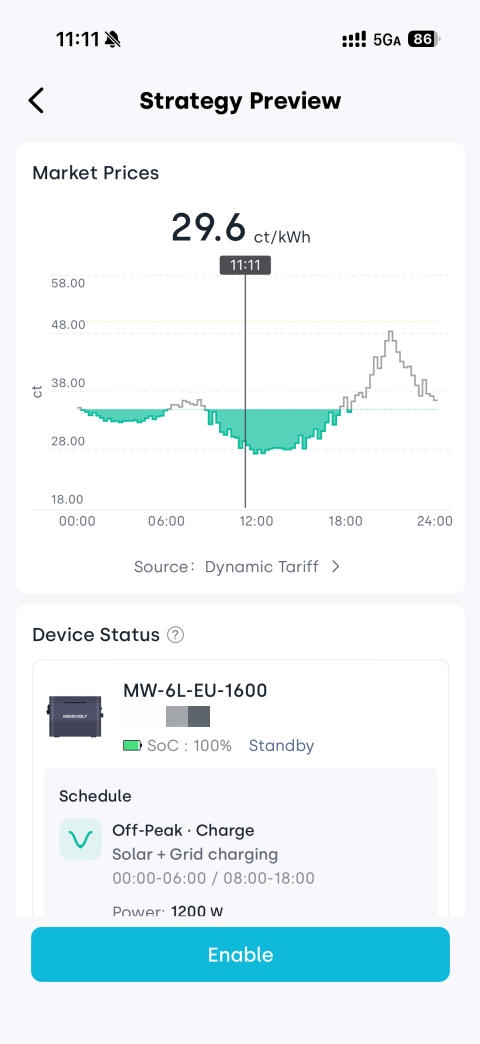
Preview the plan and tap Enable to activate it.
1.3 View Strategy
Once a strategy is created, the Dynamic Pricing Mode module displays the current status (Charging / Discharging / Standby) along with a toggle switch.
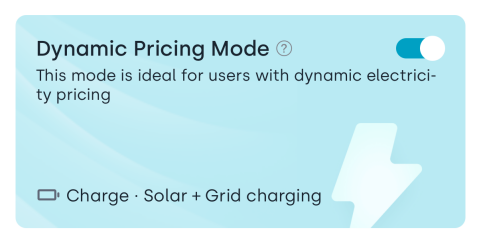
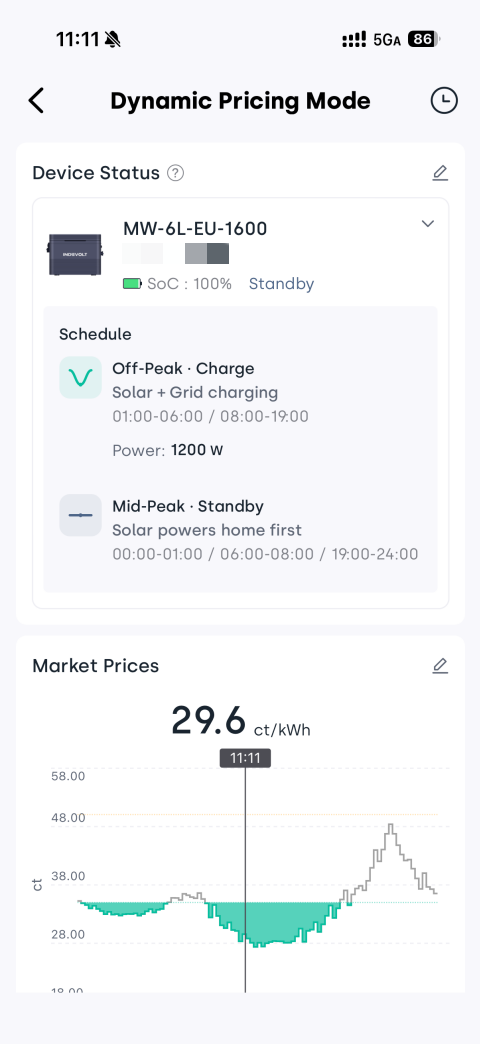
Tap the module to view the detailed schedule and participating devices.
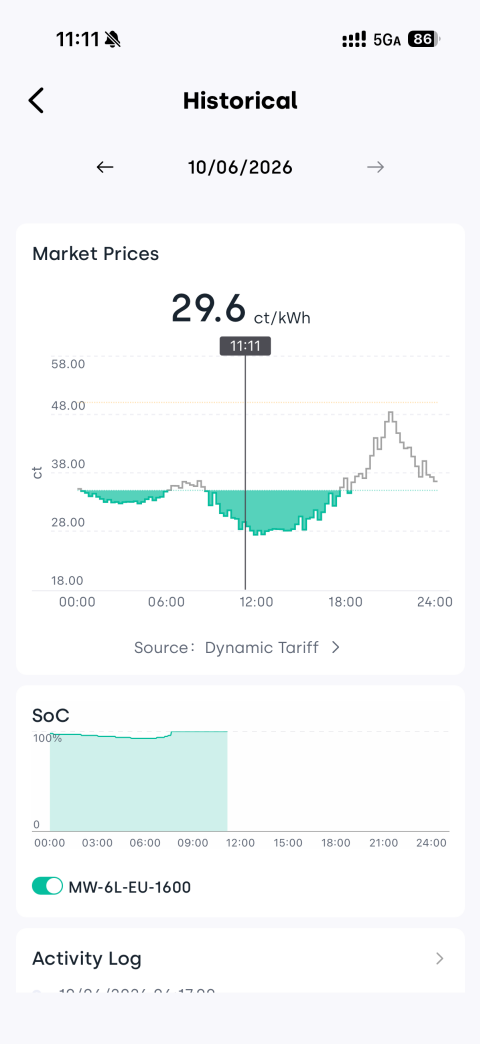
Tap the  icon in the top-right corner to view electricity market prices, SOC, and strategy logs (history of changes).
1.4 Modify Strategy
You can update the strategy at any time, including changing devices or adjusting the target price.
Modify Devices
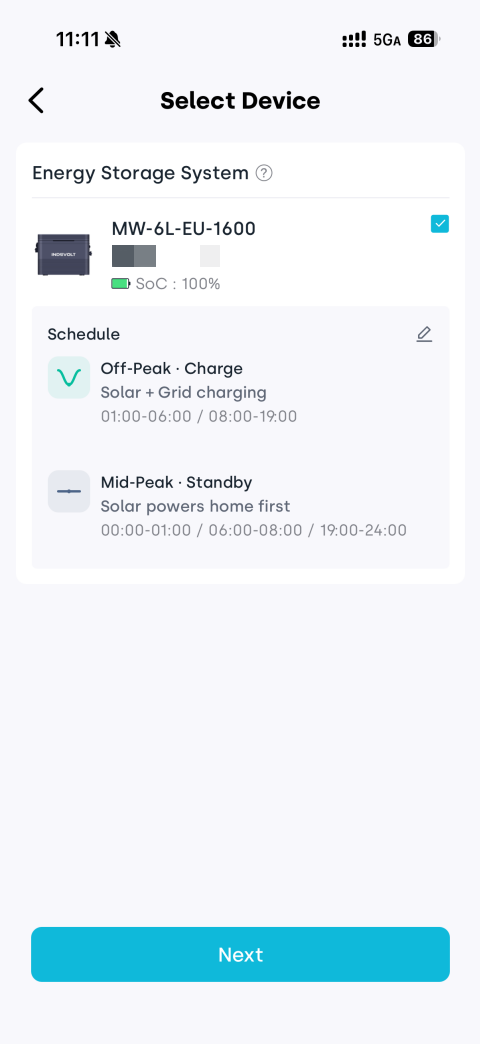
- On the strategy details page, tap the next to Device Status.
- Select the desired devices from all available devices.
- (Optional) Tap icon to adjust operation modes for different price periods.
- Tap Next, review the changes, and tap Enable.
Adjust Price
-
On the strategy details page, tap the
next to Market Prices. -
Configure the target price:
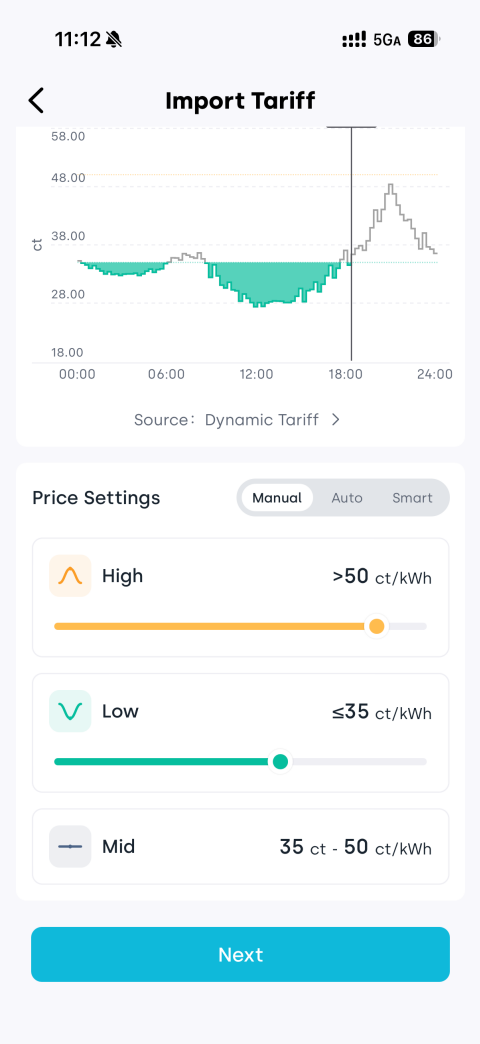
- Manual: Directly set a price below which charging starts and above which discharging starts. Suitable when you have a clear target electricity price.
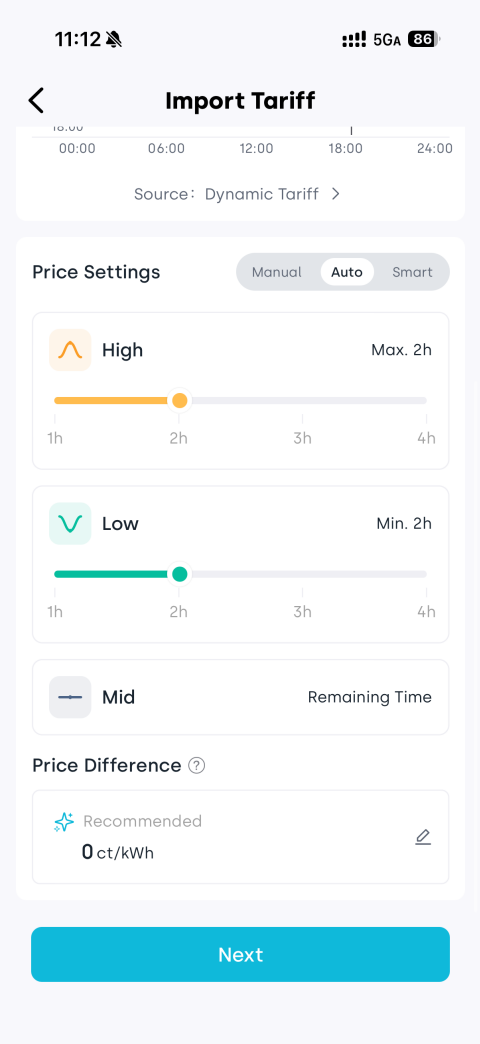
- Auto: Set high/low price ranges and price difference; the system automatically calculates the optimal trigger price.
- Smart: Only set the price difference; the system optimizes automatically.
💡 A larger price difference results in fewer activations; a smaller difference leads to more frequent charging and discharging.
-
Tap Next, review, and tap Enable.
2. AI Mode
AI Mode uses historical data to intelligently predict PV generation and household electricity consumption. By combining this with electricity pricing information, it automatically generates an optimized charge and discharge plan to maximize overall energy revenue.
2.1 Enable AI Mode
-
Tap the
icon in the top right corner of the AI Mode module. -
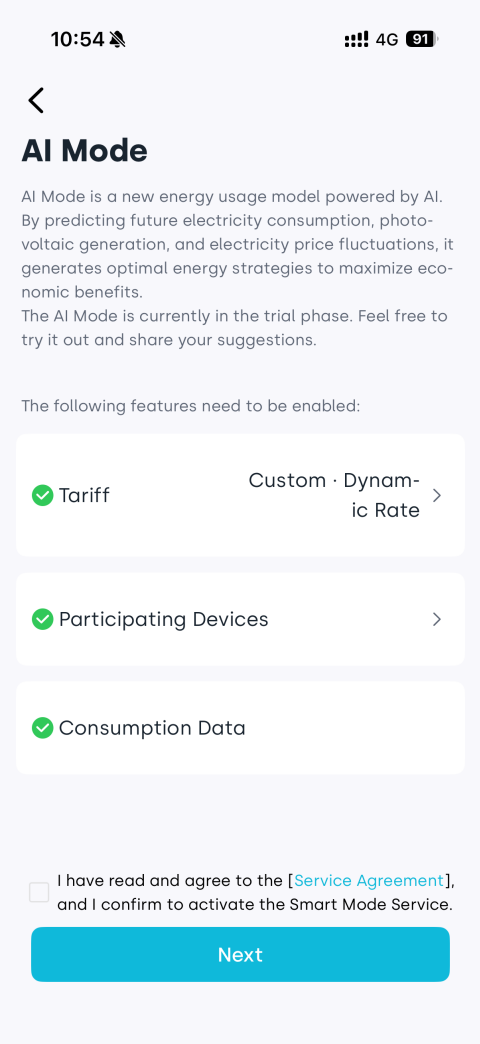
Follow the on-screen instructions to ensure the following conditions are met:
✅ Electricity pricing has been configured
✅ Devices that can participate in the strategy have been added
✅ Electricity consumption data is available: a meter or meter reader has been added and consumption data has been obtained
If not completed, tap the corresponding section to configure it, then tap Next. -
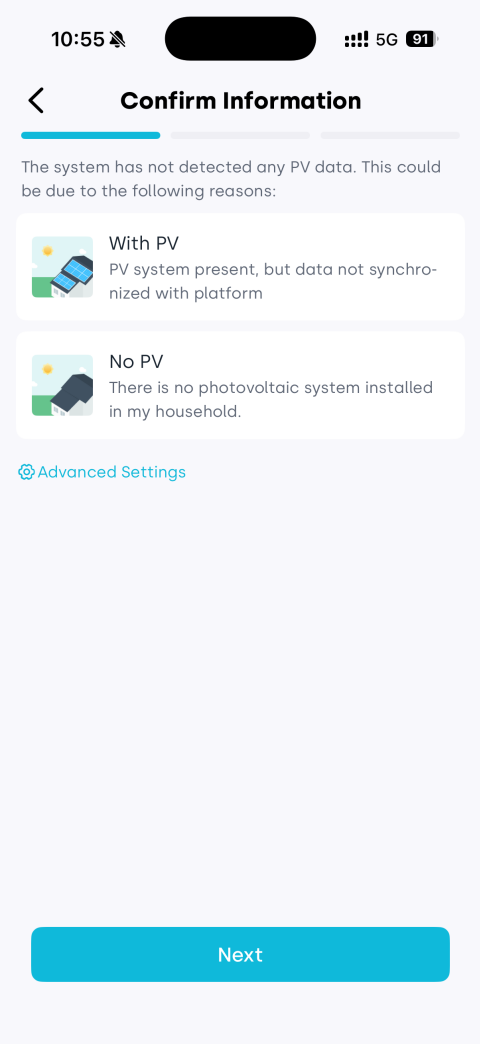
If the system detects PV information, add the address and PV details. If not, check whether there are PV devices not connected to the platform to ensure prediction accuracy. Tap Next.
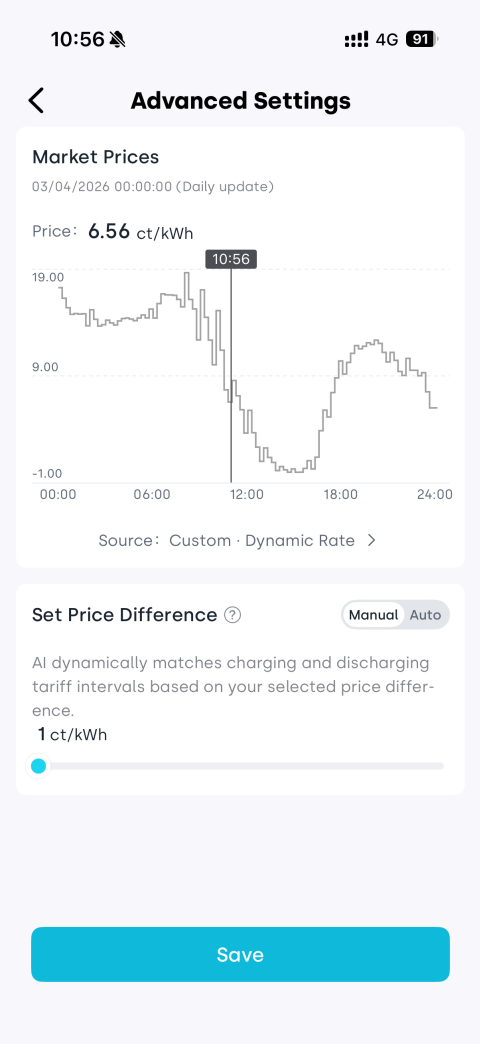
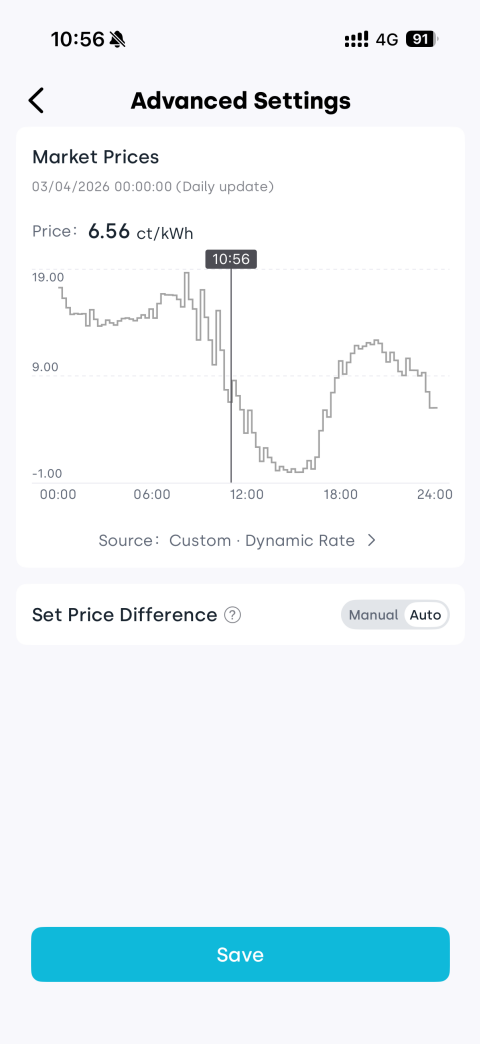
(Optional) Tap ⚙ Advanced Settings to configure the price spread.
-
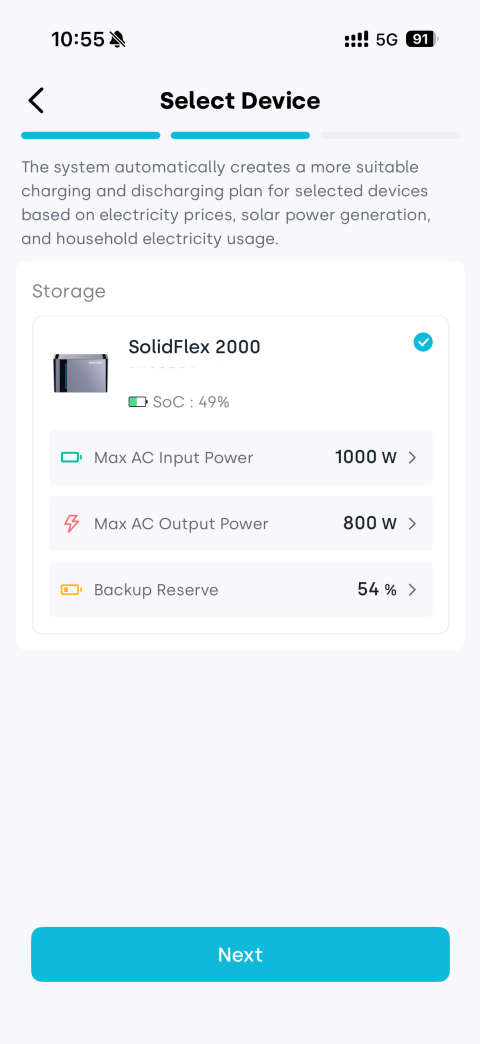
Select the devices participating in the strategy, then tap Next.
-
Preview the system-generated forecast, then tap Enable to activate AI Mode.
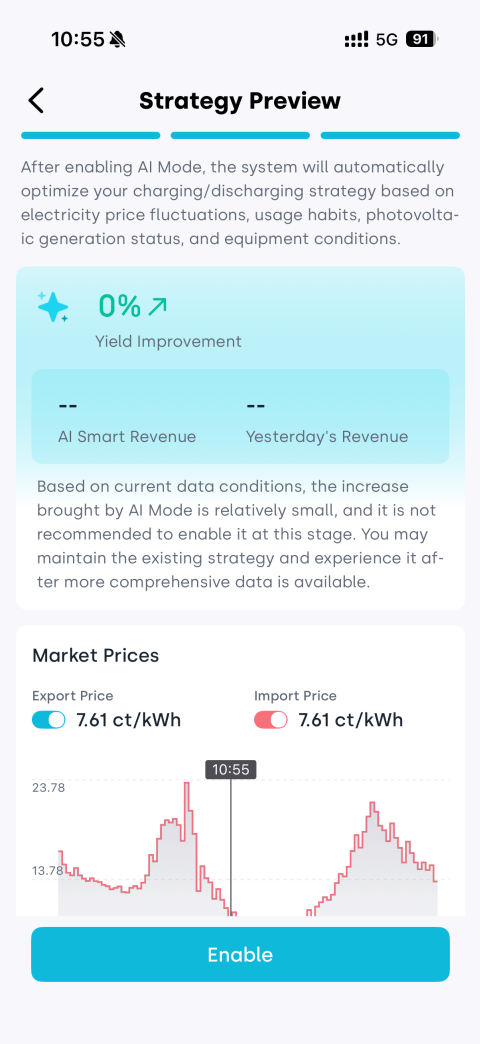
2.2 View AI Mode
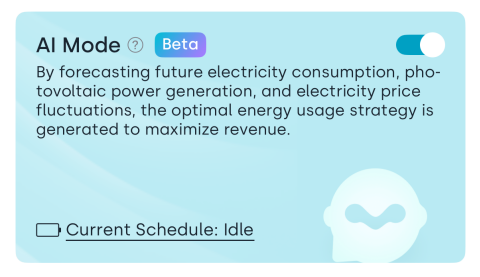
After enabling, the AI Mode module displays the current plan status (Idle / Charging / Discharging) and a toggle control.
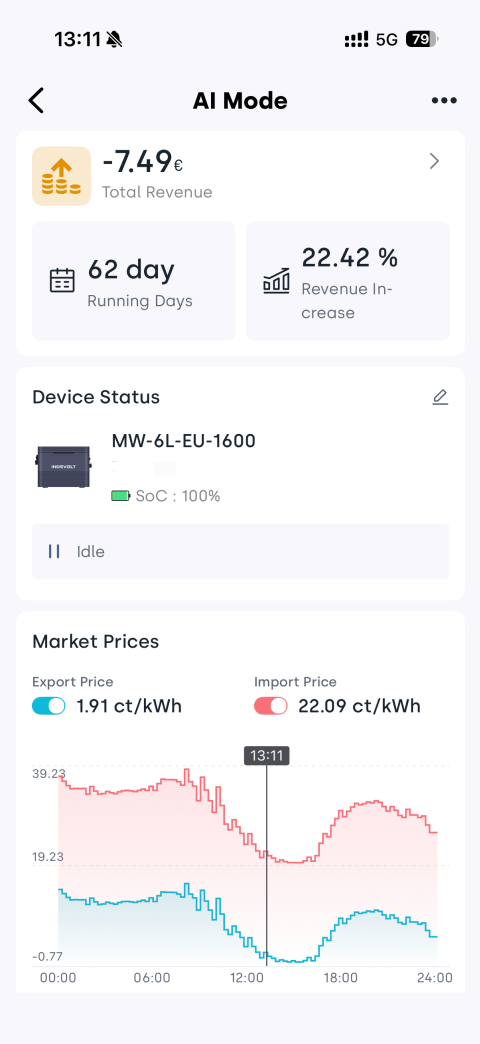
Tap the AI Mode module to enter the details page and view the current strategy status, revenue, and participating devices.
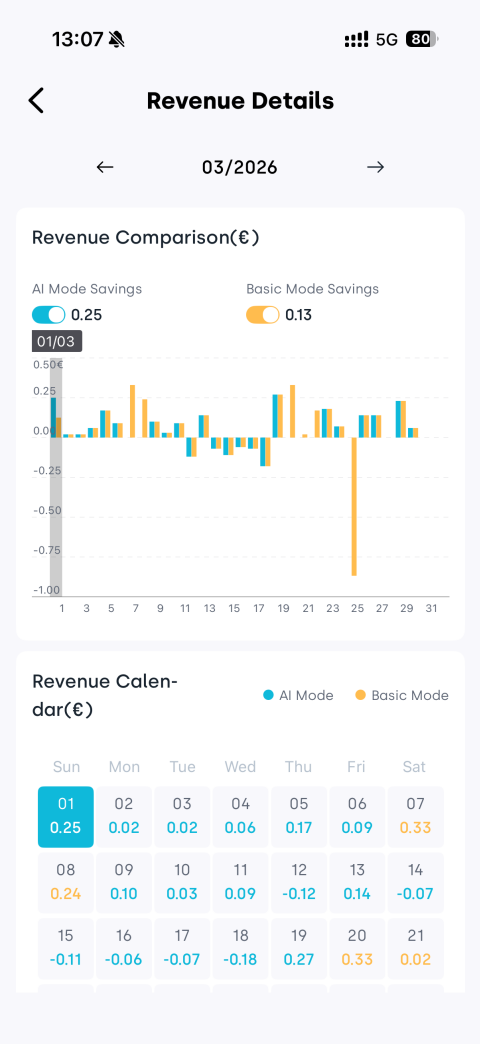
Tap the revenue section at the top to open the Revenue Details page, where you can view AI Mode revenue, Basic Mode revenue, and a comparison between the two.
2.3 Modify AI Mode
On the AI Mode page, tap the … icon in the top right corner to access more settings.
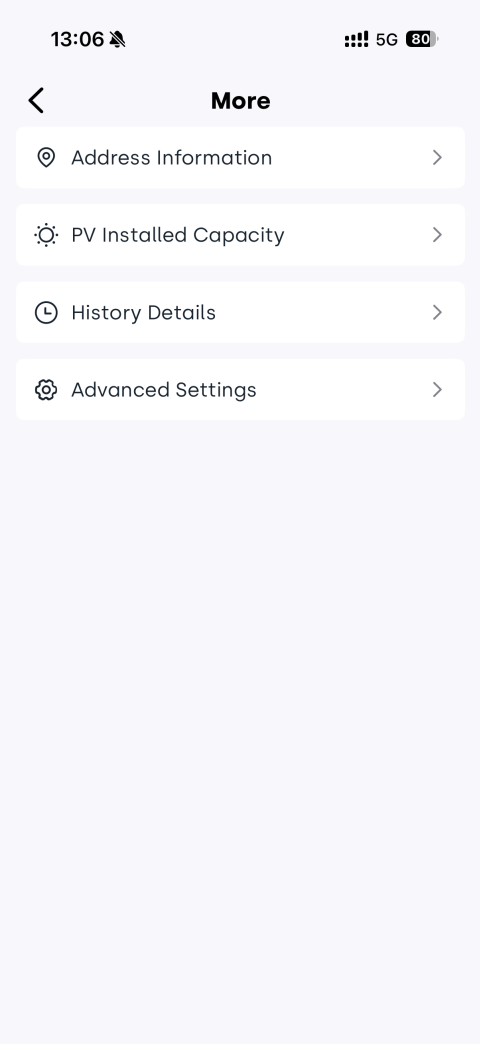
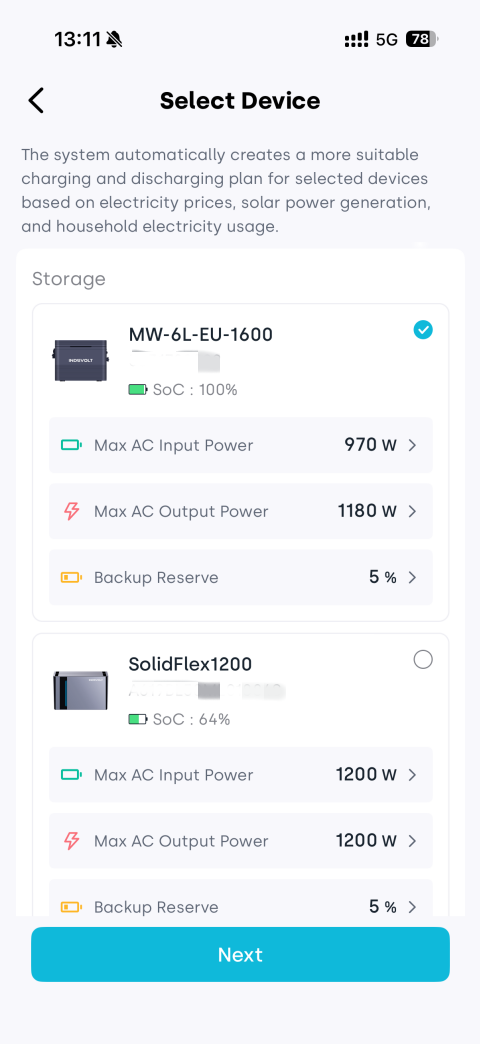
Modify Devices
- On the AI Mode page, tap the icon on the right side of the Device Status module.
- Re-select the devices participating in the strategy.
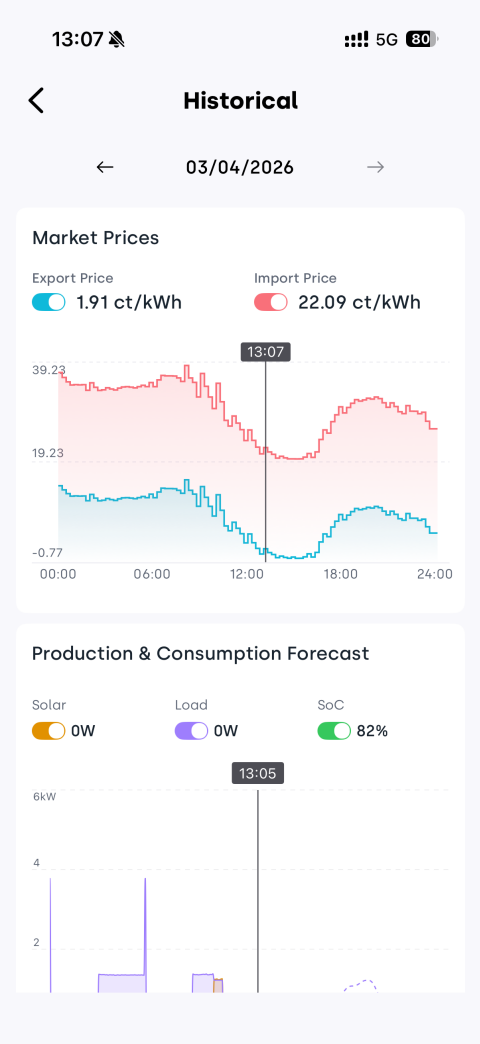
View Historical Details
Select History Details to view past operation data.
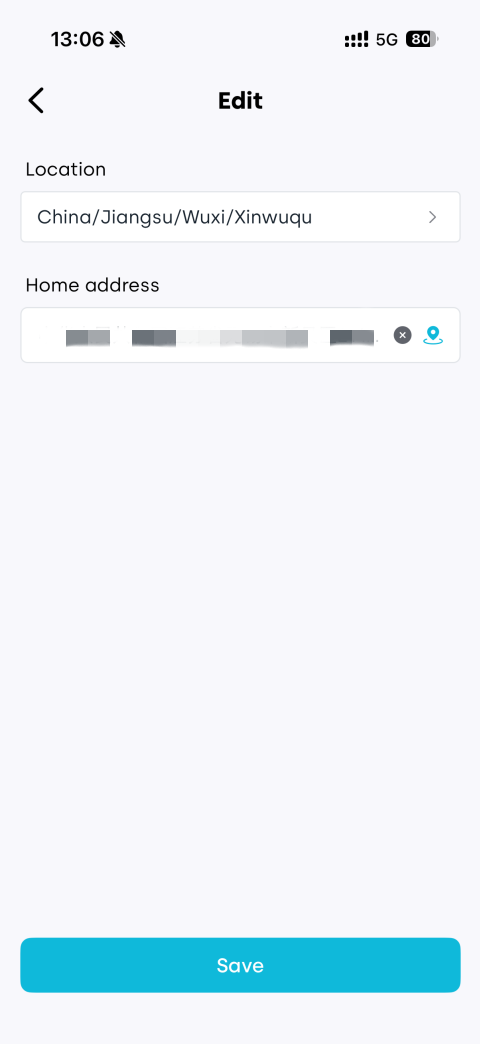
Modify Address Information
Select Address Information to update the location and home address.
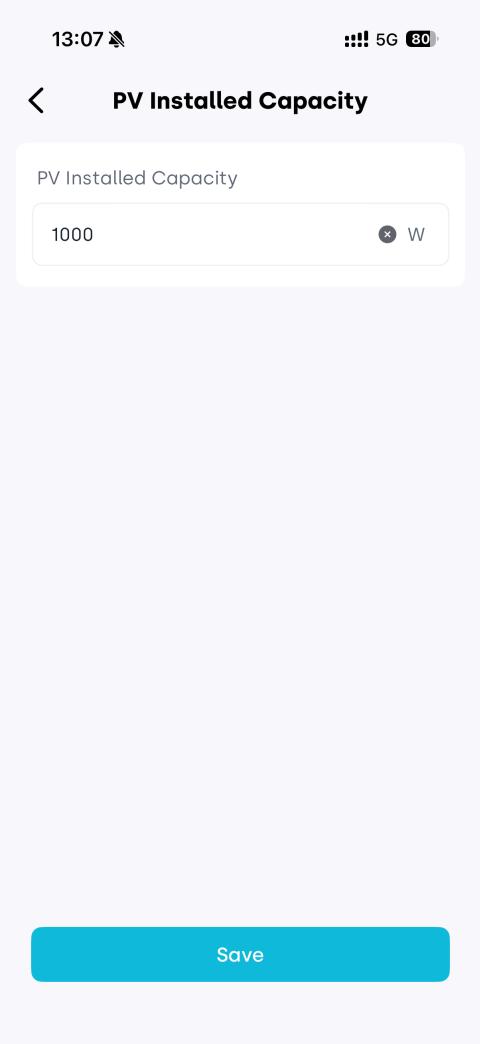
Modify Installed PV Capacity
Select PV Installed Capacity, enter the actual installed capacity, and save.
Modify Price Difference
AI automatically determines charge and discharge timing based on the configured price difference to optimize overall revenue. A smaller spread creates more opportunities for profit but results in more frequent battery cycling.
- Select Advanced Settings.
- In the Set Price Difference section, choose Manual or Auto. If Manual is selected, drag the slider to set the target spread.
- Tap Save.