Account Registration & Login
After installing the INDEVOLT App, open it to enter the login page.
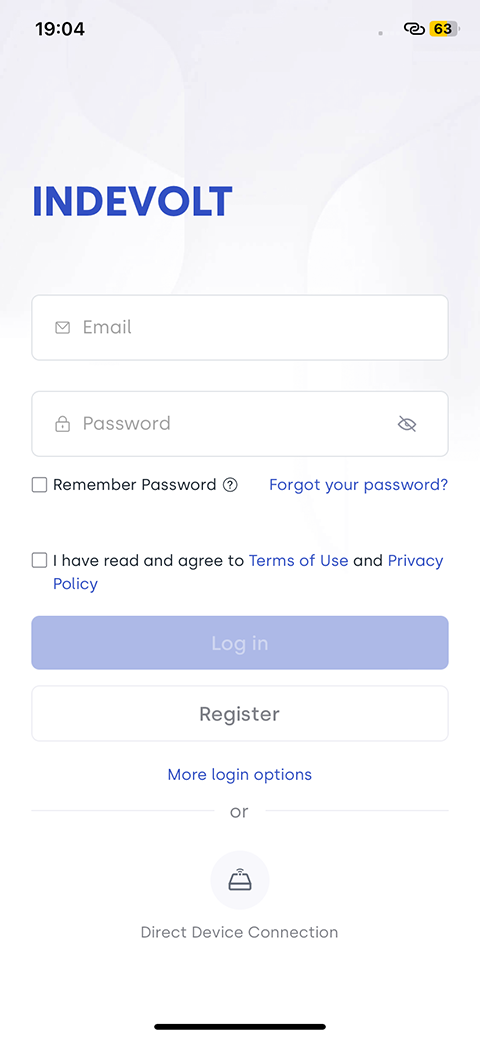
New User Registration
Follow the steps below to create a new account.
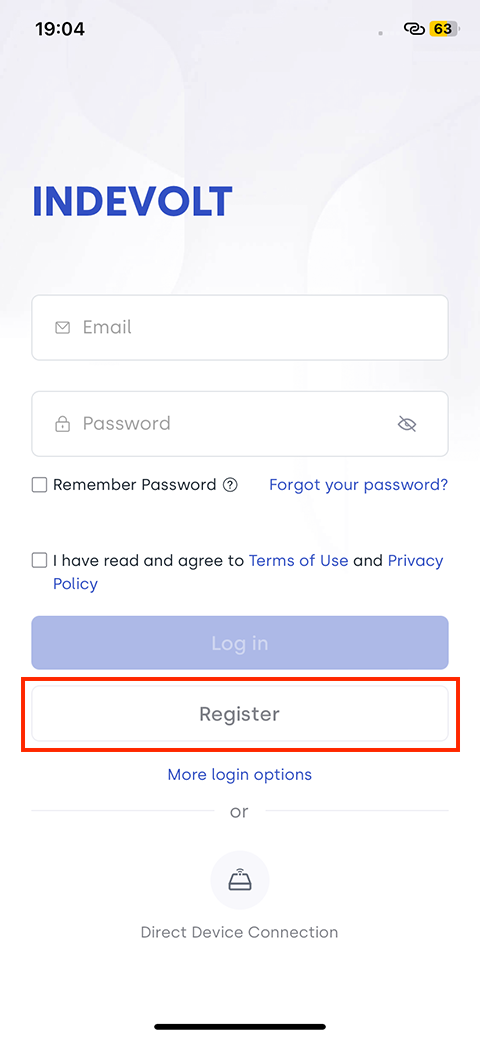
Step 1: Go to the Registration Page
On the login page, tap the Register button.
Step 2: Fill in Your Information
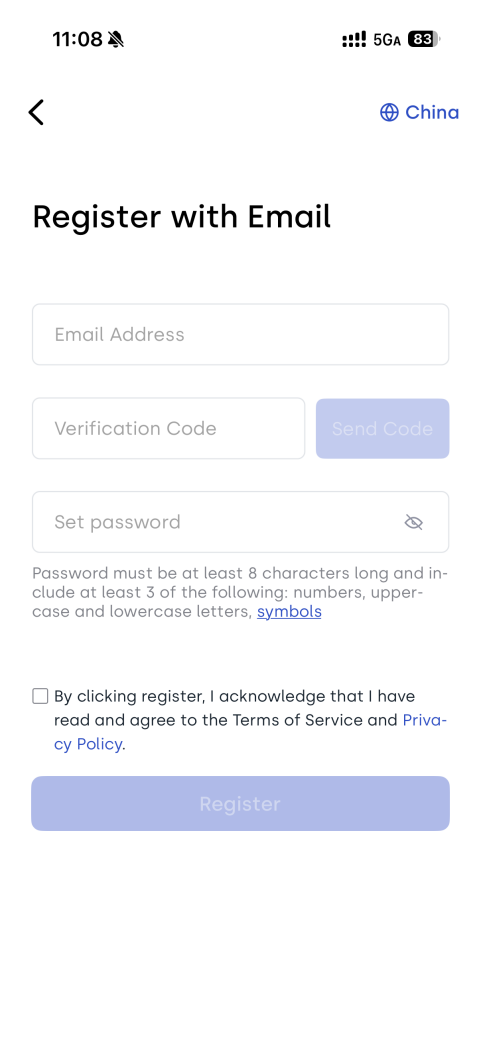
Enter the required information as shown on the screen.
-
Enter your commonly-used email address.
-
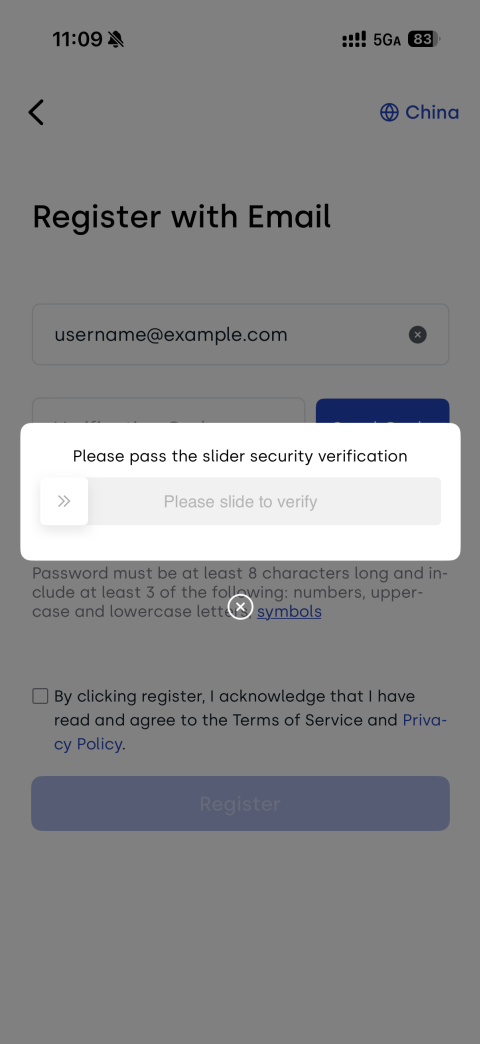
Tap Send Code.
-
Slide to complete the email verification.
-
Enter the verification code sent to your email.
-
Set a secure password (at least 8 characters, including at least 3 of the following: numbers, uppercase and lowercase letters, symbols).
If you see a message saying the account is registered, it means the account exists. Please log in using your password in the Account Login section or reset your password through Forgot Password.
For security reasons, simple passwords such as “123456” or repeating characters like “AAAAA123” are not allowed.
Step 3: Complete Registration
- Read and agree to the Terms of Service and Privacy Policy.
- After confirming all information is correct, tap the Register button.
Once the verification is complete, the app will automatically take you to the main interface.
Account Login
If you already have an account, you can log in using the steps below.
-
Tap More login options to switch between Phone, Email, or ID login.
-
Enter the phone number, email, or username you used when registering.
-
Enter your password.
-
Read and agree to the Terms of Use and Privacy Policy.
-
Tap the Log in button.
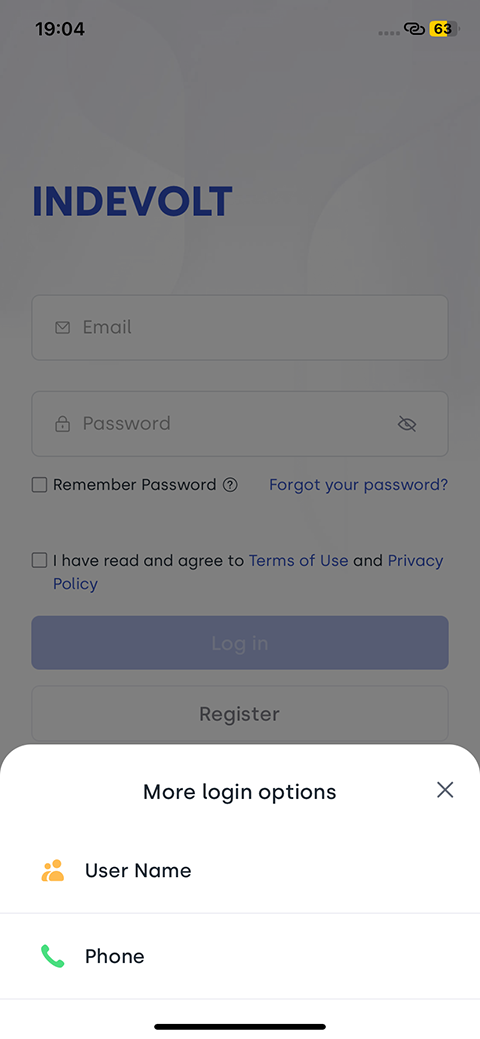
After successful login, the app will take you to the main interface.
Forgot Password
-
On the login page, tap Forgot your password?.
-
Choose to reset via email or phone.
-
Enter the email or phone number linked to your account.
-
Tap Send Code.
-
Slide to verify your email/phone number.
-
Enter the verification code you received.
-
Tap Next.
-
On the Reset password page, enter your new password and confirm it, then tap Save.
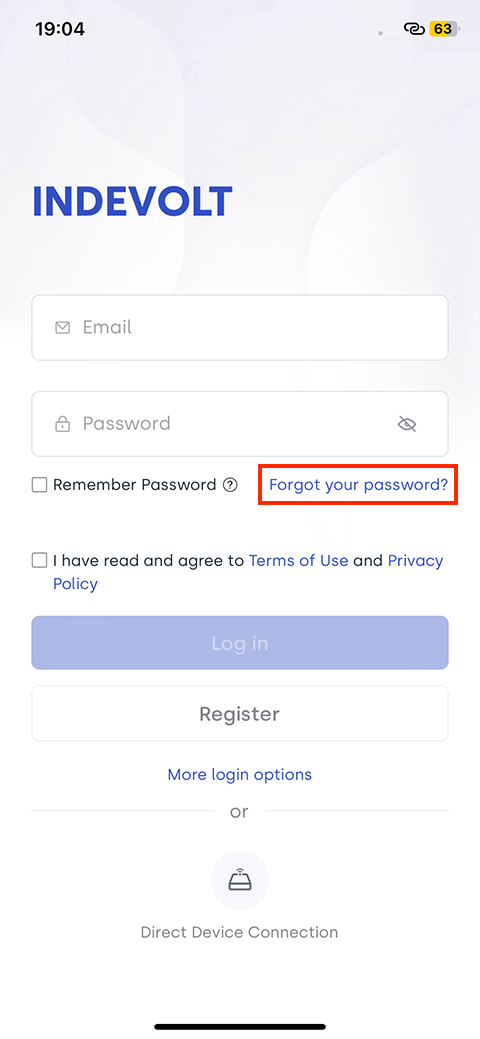
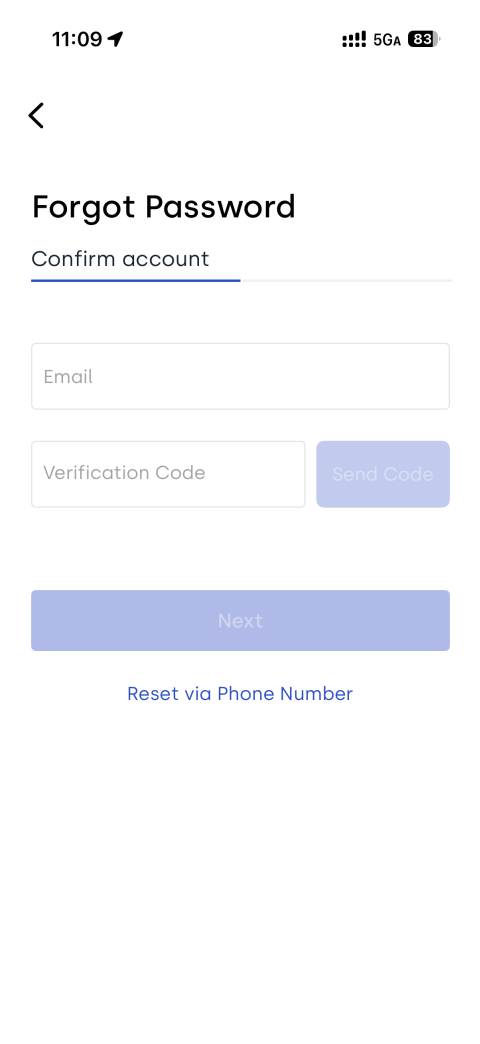
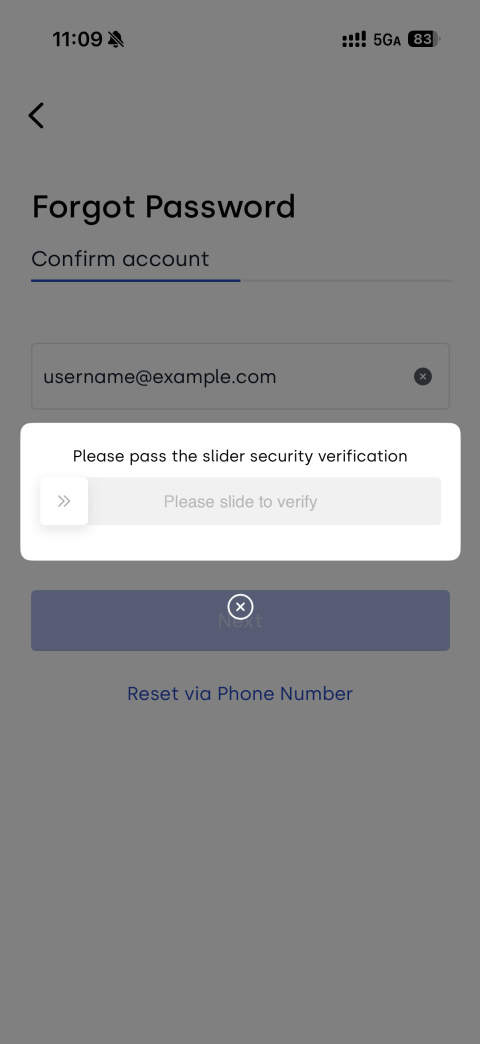
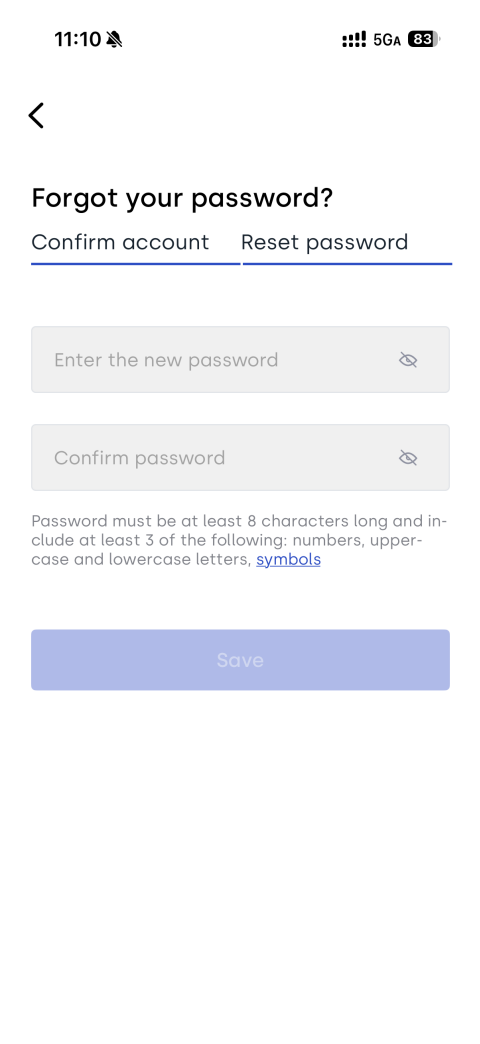
Once your password is successfully reset, tap Log in to return to the login page and log in again.