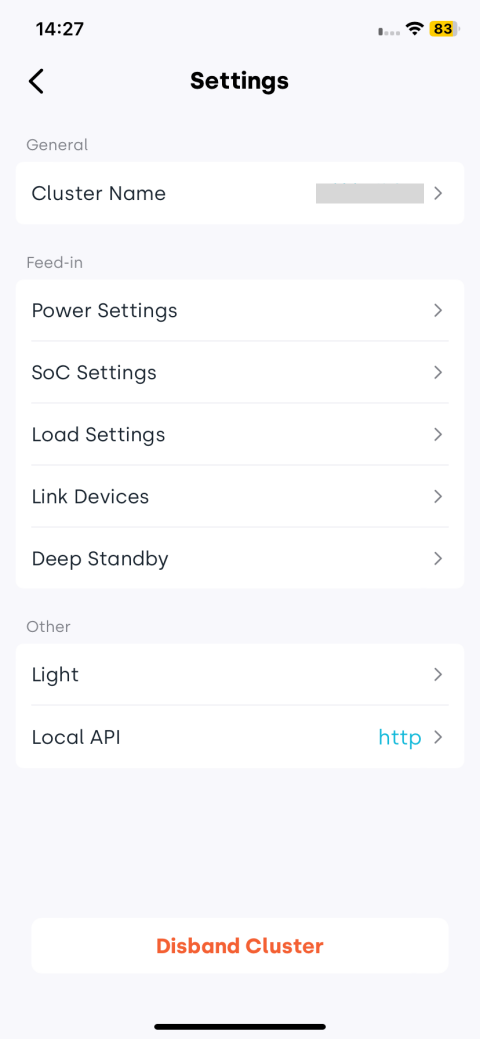
Device
The Device page displays all energy devices in your home, listing key information such as device SN, online status, and last data update time. Tap the + button in the top-right corner to add a device.
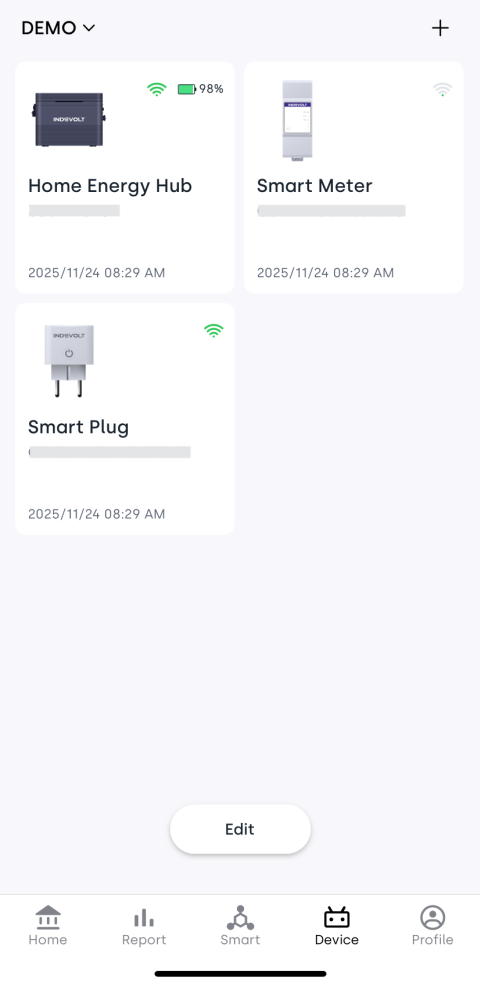
1. Edit Devices
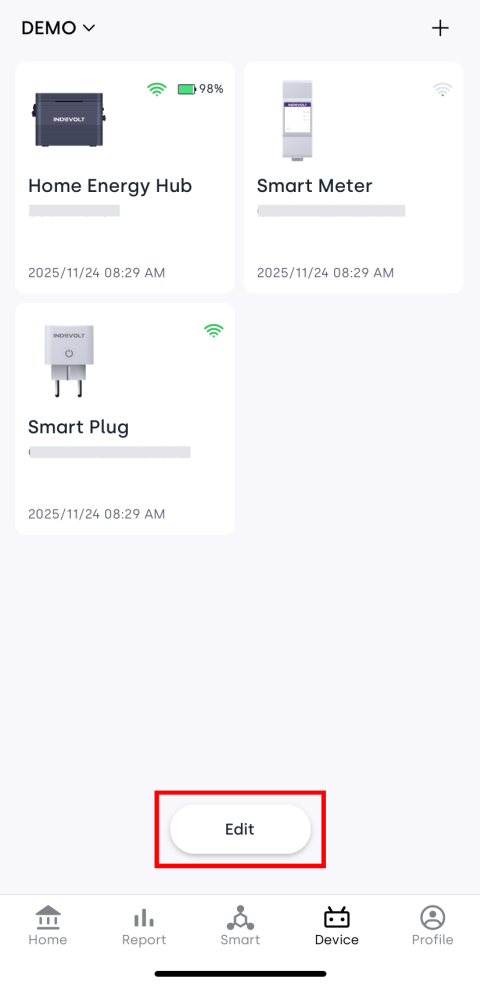
Tap the Edit button at the bottom of the page, select a device, or long-press a device card to enter edit mode. The following actions are supported:
- WLAN: Tap WLAN to configure the network. The process is the same as Network Configuration during device addition.
- Rename: Tap Rename to change the device name.
- Delete: Tap Delete. The app will show a confirmation popup. After confirming, the device will be removed. Once deleted, you will no longer be able to view its data - please proceed with caution.
2. Device Details
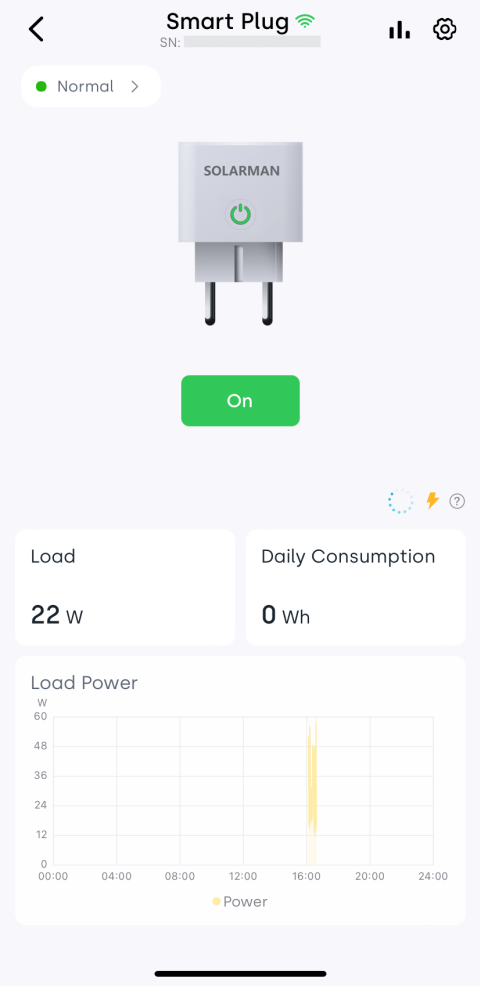
Tap a device card to enter its details page. This page displays general information such as signal strength, SN, real-time data, quick-refresh function (⚡), as well as device-specific parameters and features depending on the device type.
3. Statistics
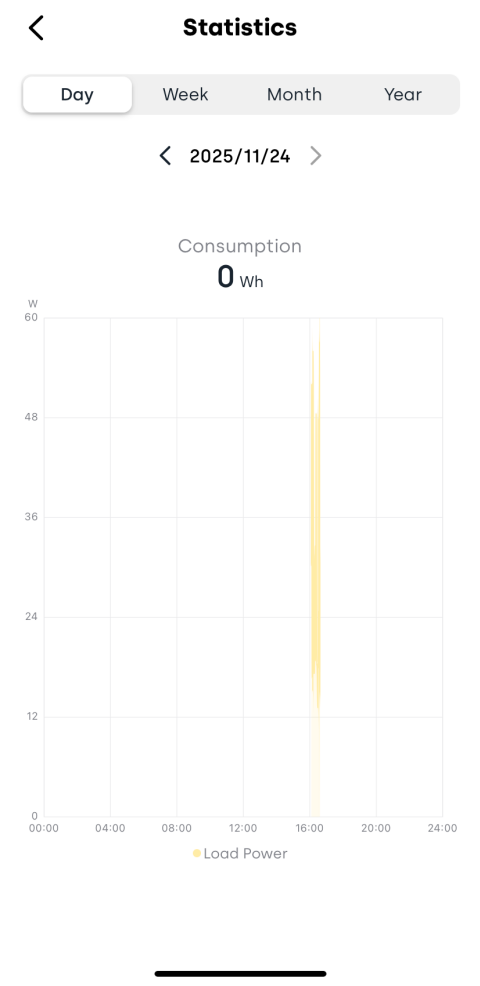
Tap the  icon in the top-right corner of the device detail page to enter the Statistics page, where you can view data curves for daily, weekly, monthly, and yearly dimensions.
4. Device Settings
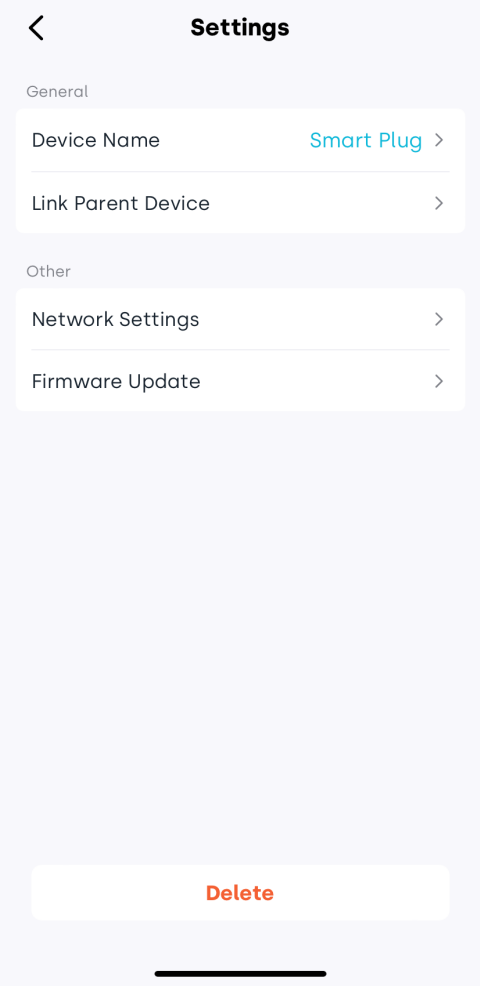
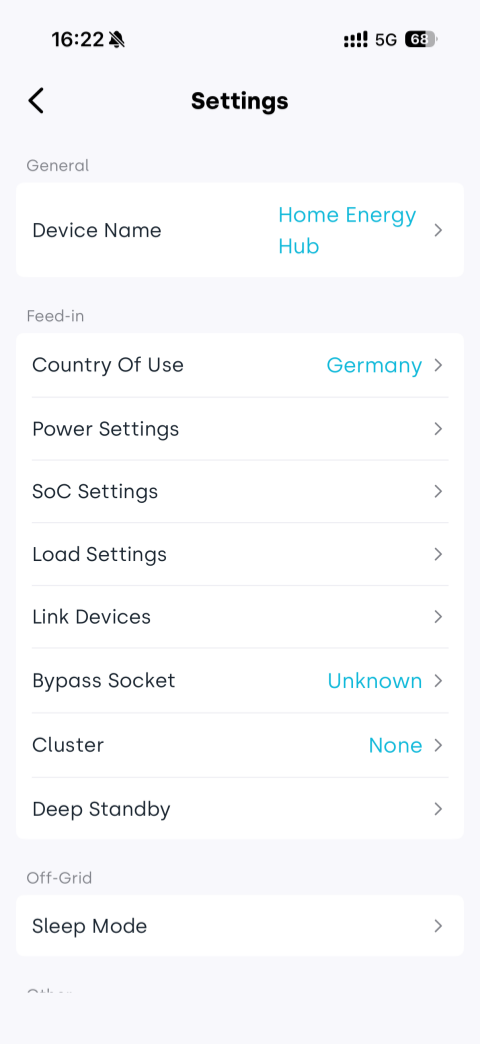
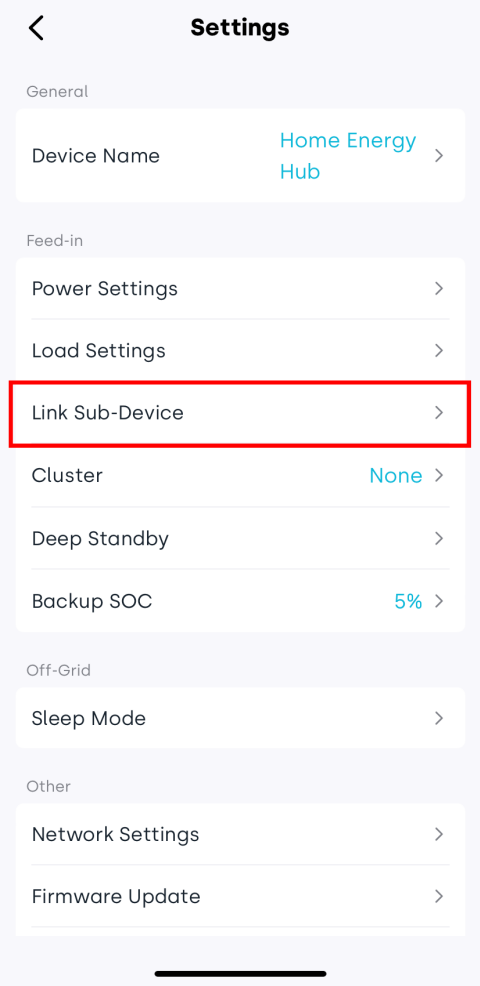
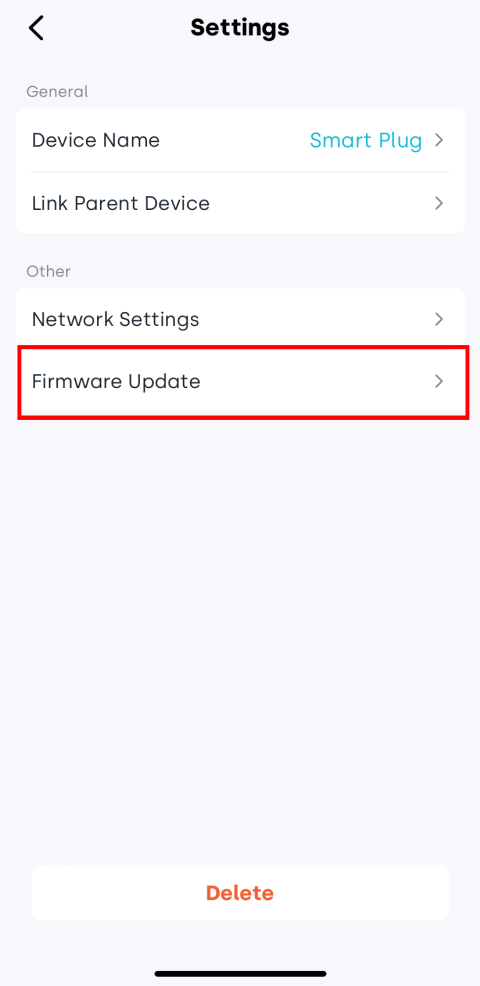
Tap the  icon in the top-right corner of the device detail page to enter the Settings page. This section includes device name, linked devices, network settings, firmware update, and other device-specific functions.
4.1 Change Device Name
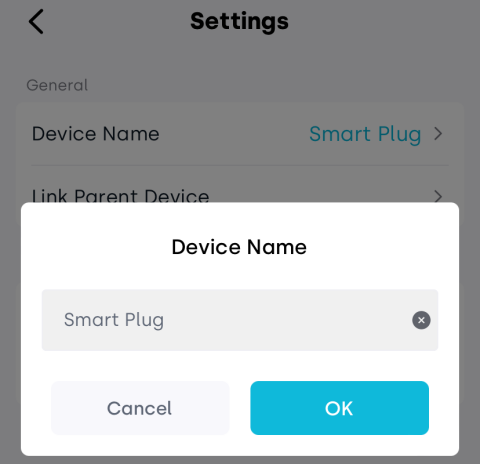
Tap the Device Name field to modify how the device name appears in the app.
4.2 Power Settings
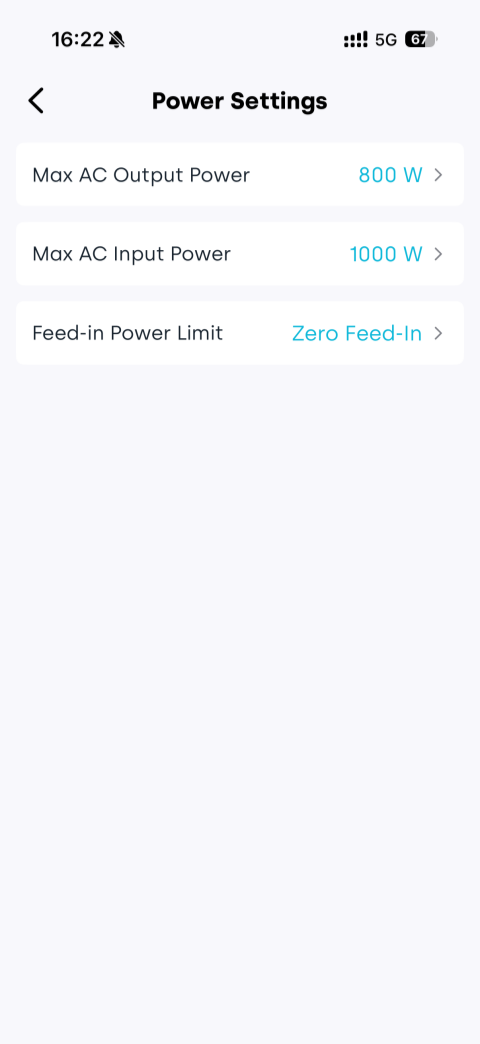
On the Power Settings page, you can configure power limits for the device, including: Max AC Output Power, Max AC Input Power, and Feed-in Power Limit.
- Go to the device settings page and tap Power Settings.
- Select the power parameter you want to modify.
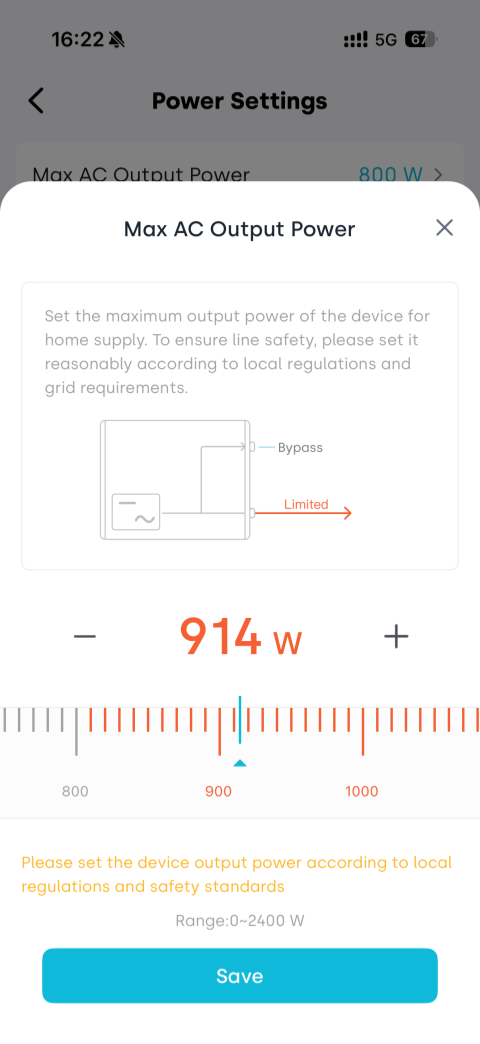
- Slide to choose the desired power value.
- Tap Save to apply the settings.
Setting AC power above 800W
If you need to set the max AC output power or max AC input power above 800W, the system will display different prompts or verification processes based on the selected country of use.
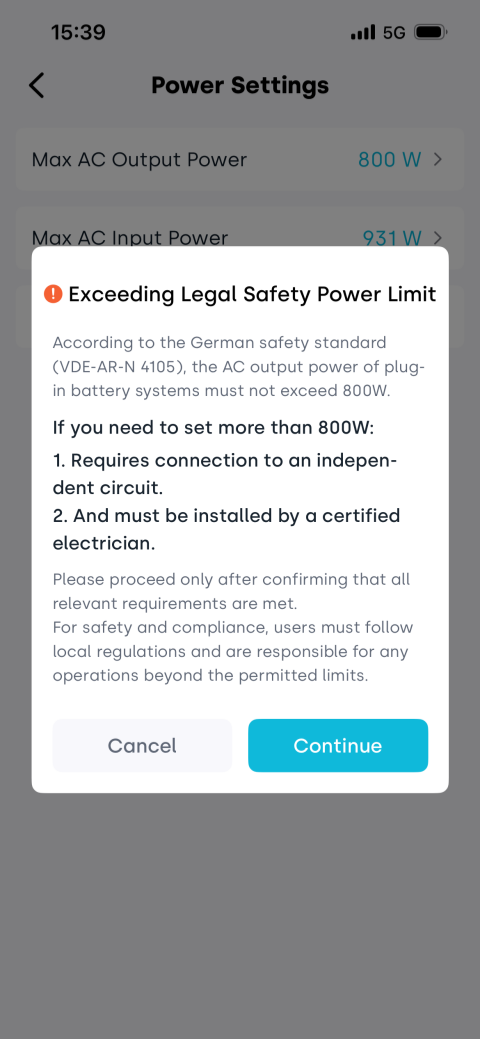
According to German safety standards, the AC output power of plug-in battery systems must not exceed 800W. Therefore, when users in Germany attempt to set values above 800W, Professional Mode verification is required to ensure compliance with safety regulations.
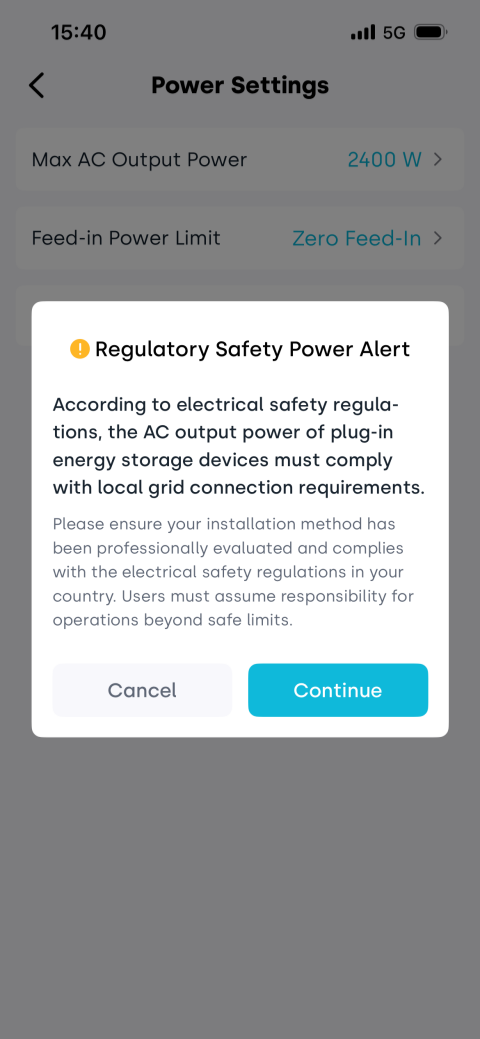
Users in other countries will only see a safety notice when setting values above 800W, without additional verification.
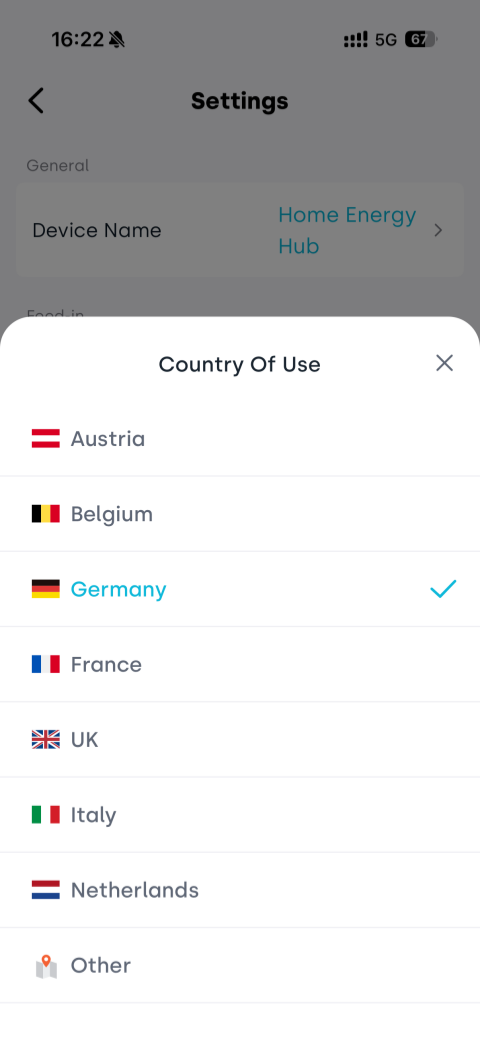
Step 1: Set Country Of Use
On the device settings page, find Country Of Use and select your country from the list.
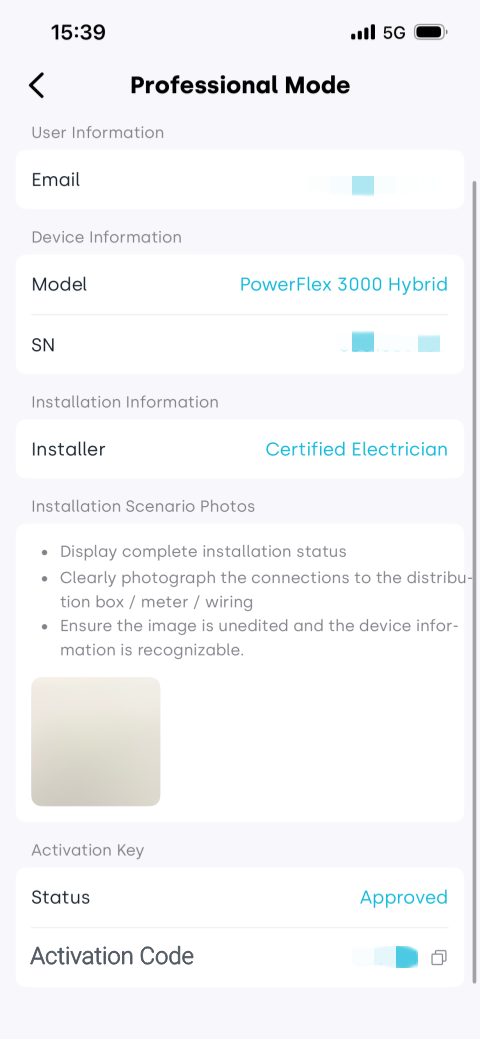
Step 2: Request an activation code (Germany only)
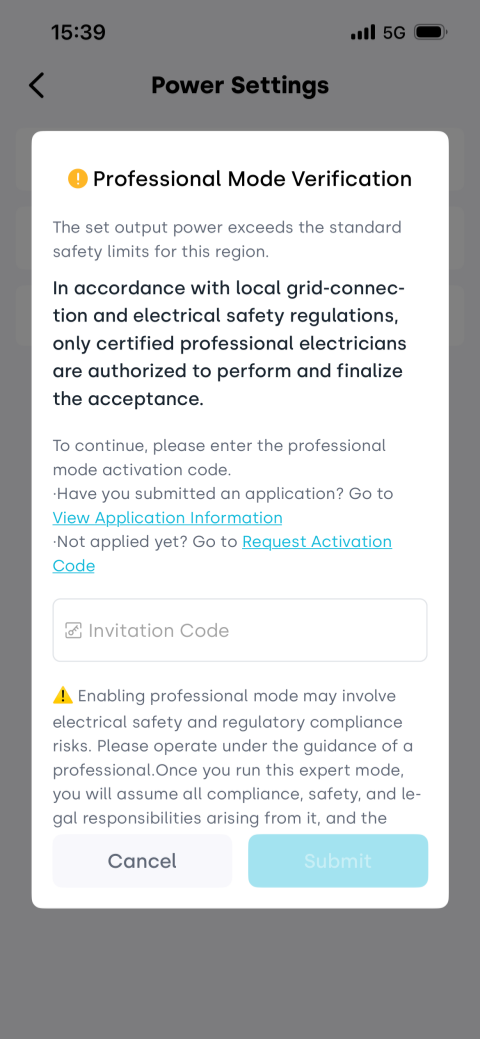
When users in Germany set power above 800W for the first time, Professional Mode verification is required. An activation code must be obtained before completing the setting.
- After setting a value above 800W and tapping Save, the app will display the Professional Mode verification page.
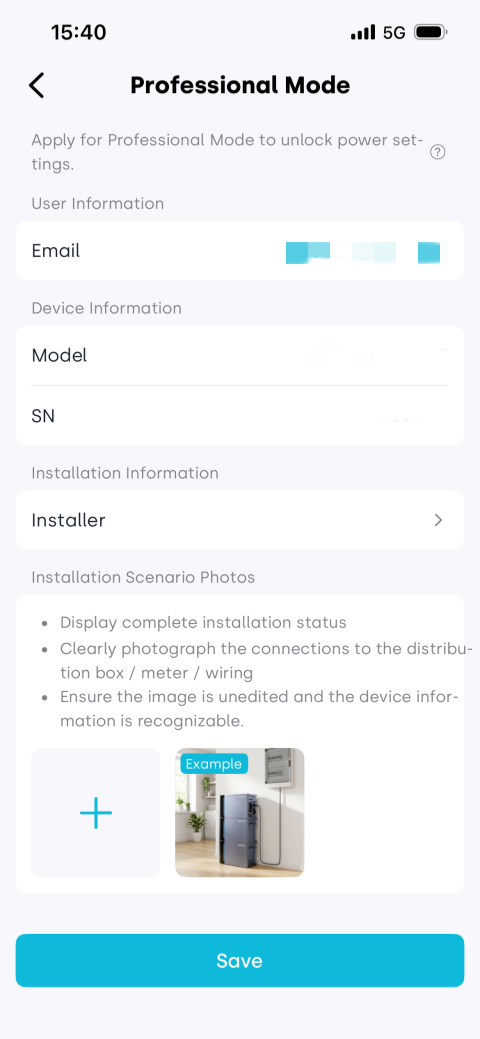
- Tap Request Activation Code.
- Fill in the following information and tap Save to submit the request:
- User information
- Device information
- Installer information
- Installation scenario photos
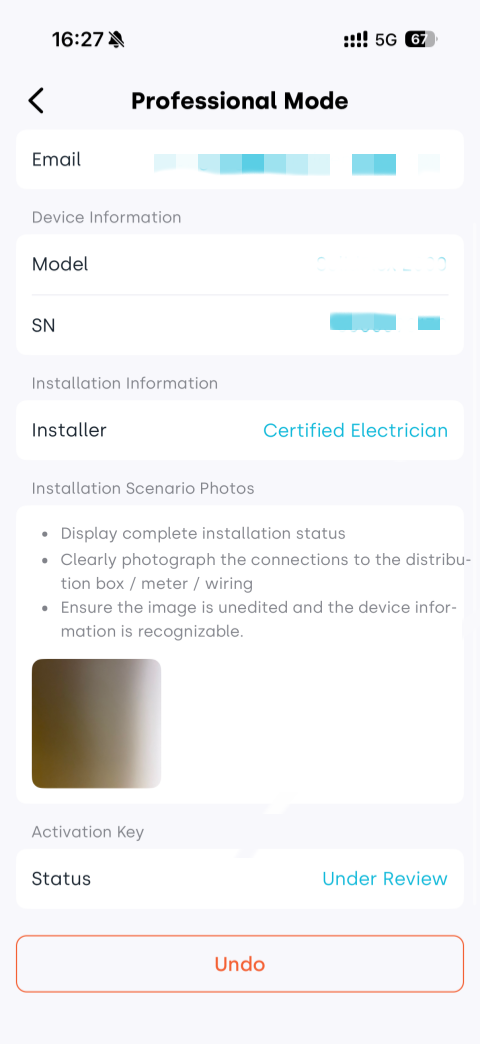
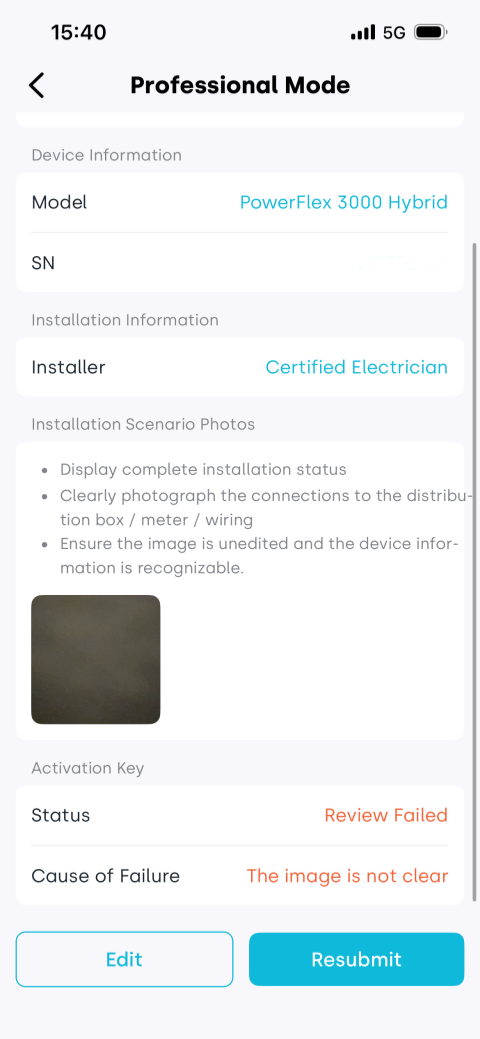
- After submission, you can check the review status in the Activation Key section. If the page does not update in time, return to the verification page and tap View Application Information:
- Under review: The request is being processed
- Approved: The system will display the activation code
- Review Failed: You need to resubmit based on the feedback, for example:
- Image is unclear
- Incomplete angle or content
- Installation compliance cannot be verified
- Image does not match the device
- Image does not meet authenticity requirements
- Once approved, copy the activation code and paste it into the corresponding field on the Professional Mode Verification page, then tap Submit to complete verification.
Step 3: Confirm and save power settings
- Germany
- Other Countries
After verification, if the power setting exceeds the recommended regulatory value, the app will display a safety notice. Tap Continue to apply the settings.
When the power setting exceeds 800W, the app will display a safety notice. After confirming the message, tap Continue to apply the settings.
4.3 Link Parent Device / Sub-Devices
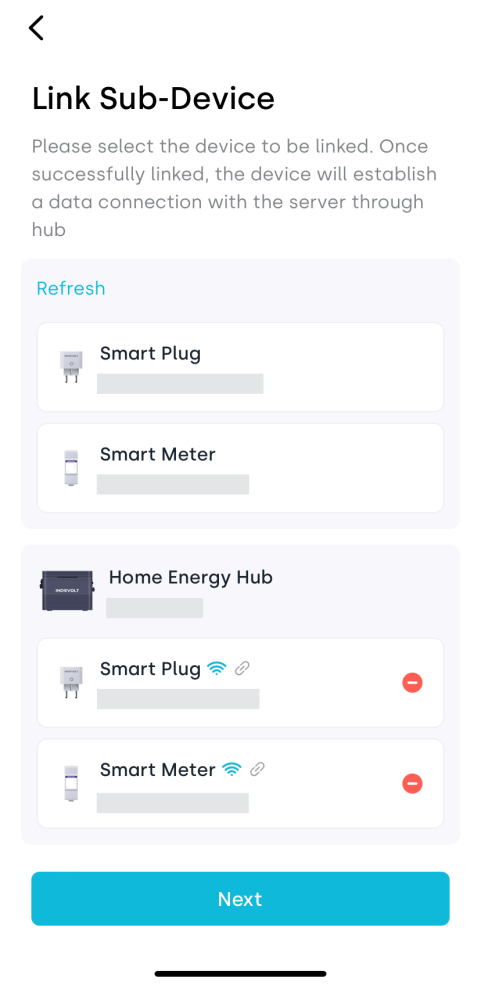
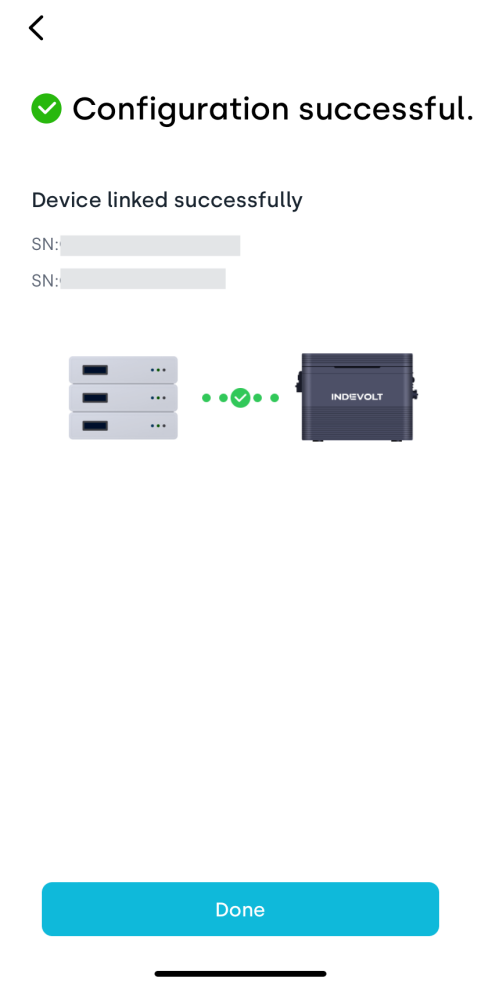
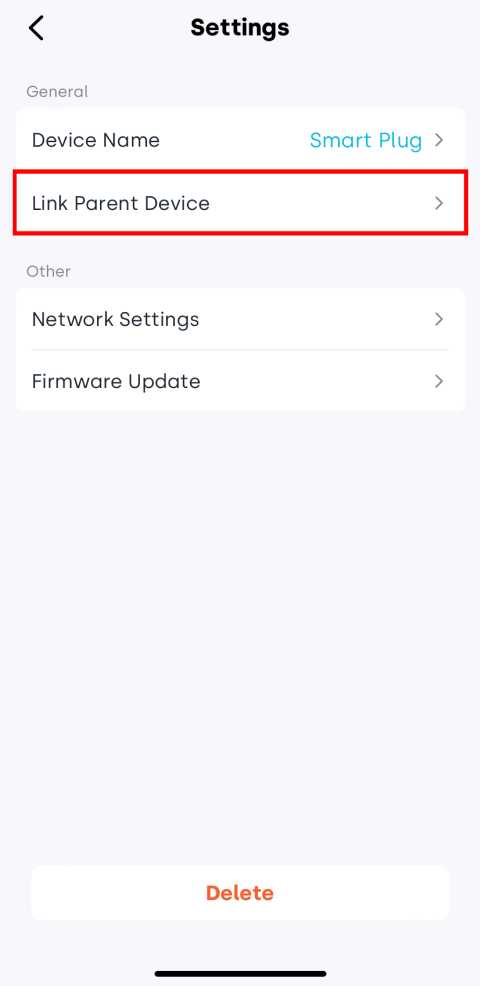
To simplify data viewing and management, the system allows establishing parent-child relationships between devices:
-
Storage devices can act as parent devices and add linked sub- devices.
-
Other device types can serve as sub-devices linked to a parent device.
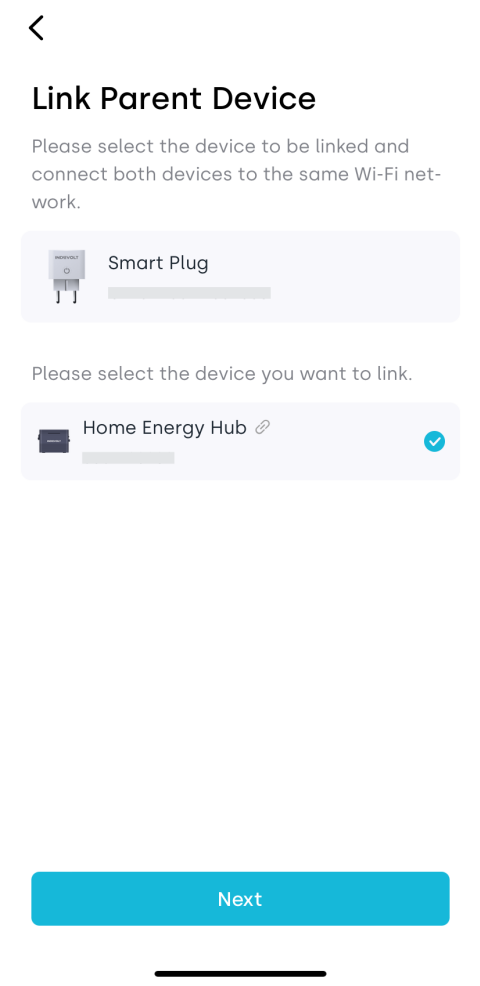
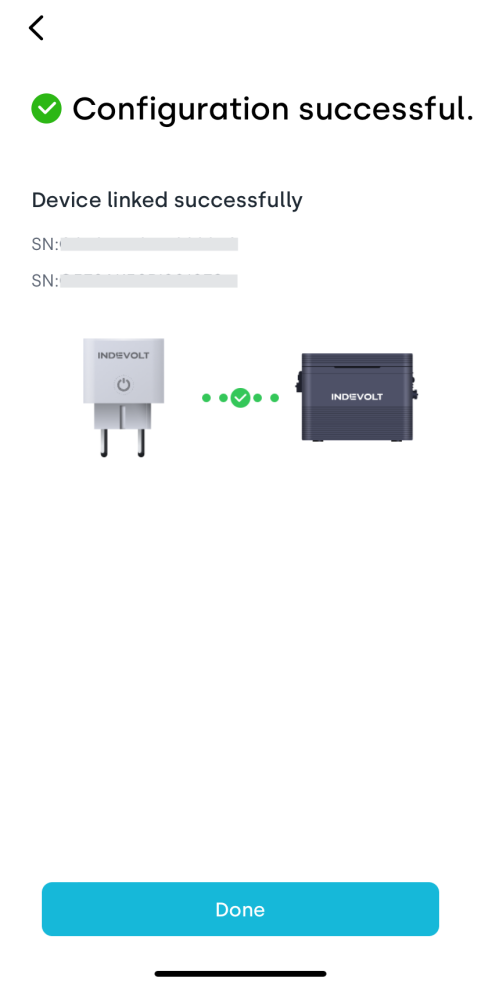
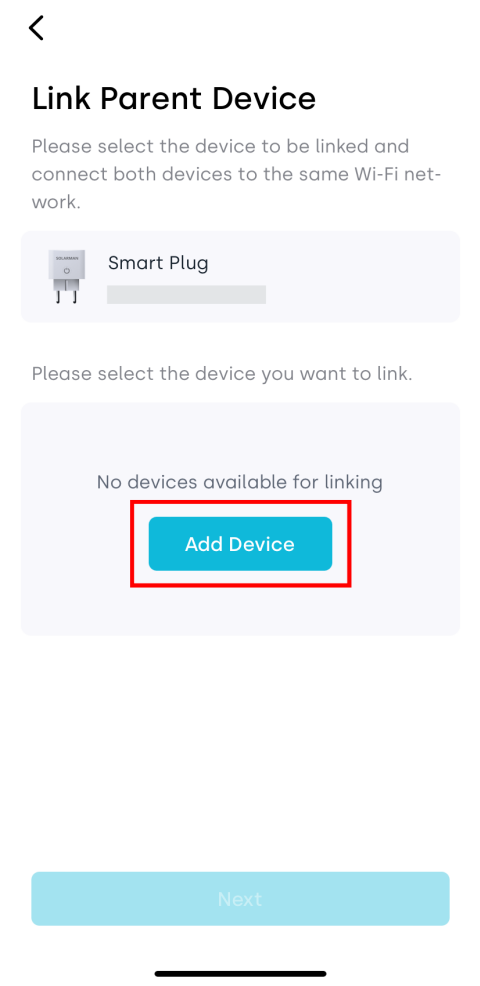
If no devices are available for linking, please click Add Device to include the device in your home first.
4.4 Network Settings
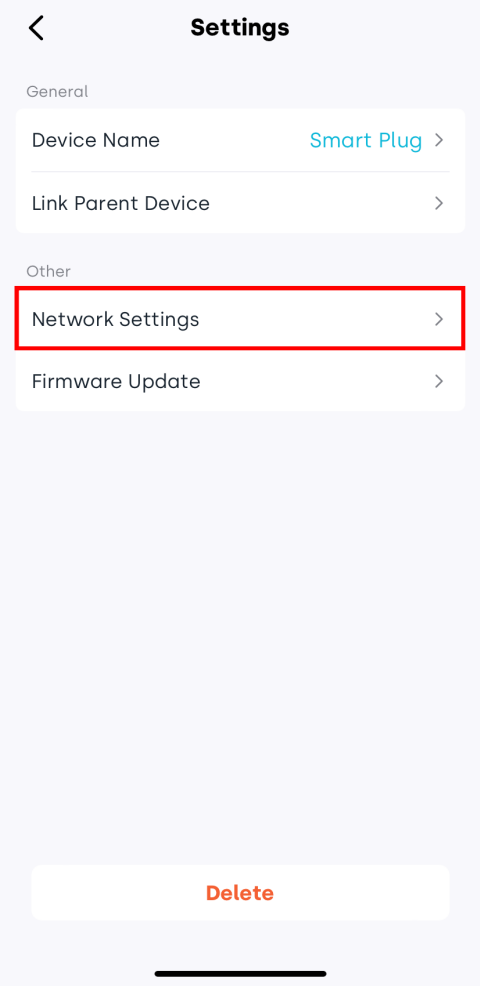
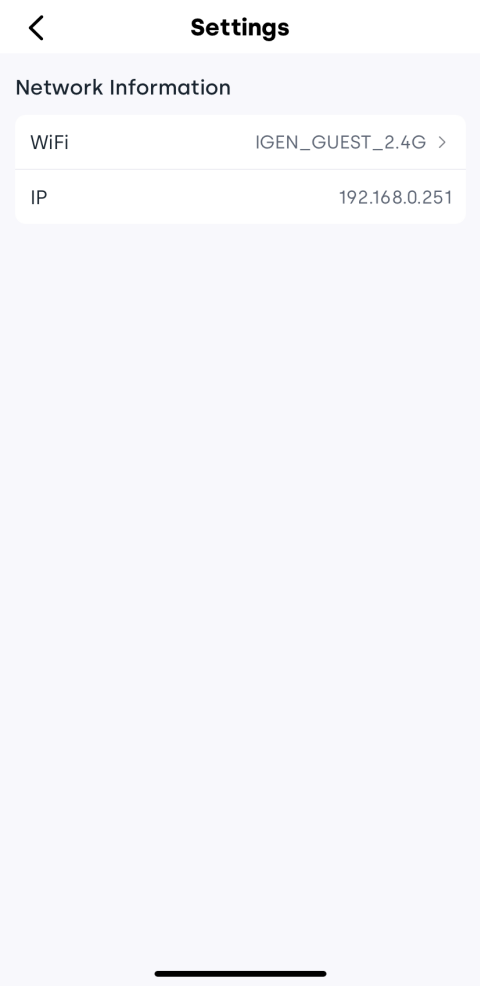
Tap Network Settings to view the Wi-Fi name the device is connected to and its assigned IP address.
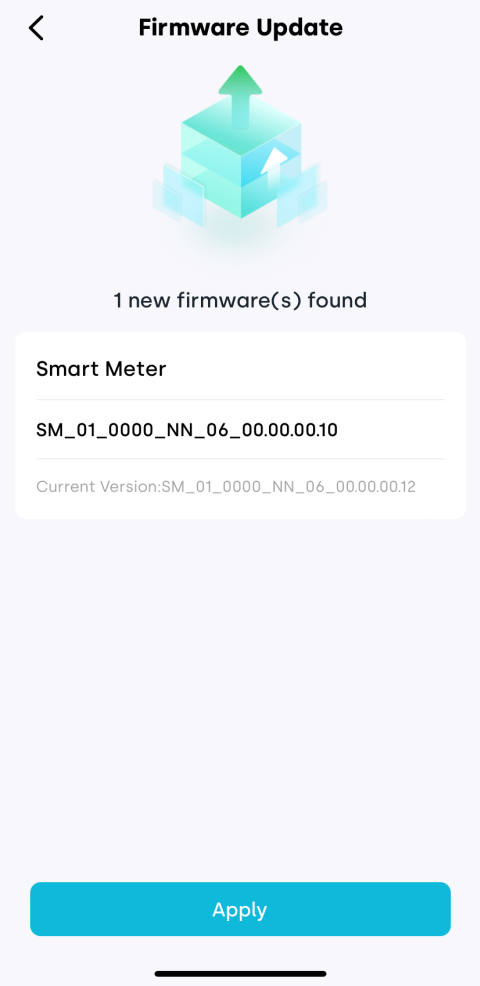
4.5 Firmware Update
Tap Firmware Update to view the device’s current firmware version and available updates. If a new version is available, tap Apply to upgrade online.
5. Cluster
When multiple energy storage devices are connected in parallel, they are managed and displayed as a unified energy cluster. The cluster is centrally coordinated by a main device, which automatically distributes energy and synchronizes operating modes, feed-in limits, and other settings.
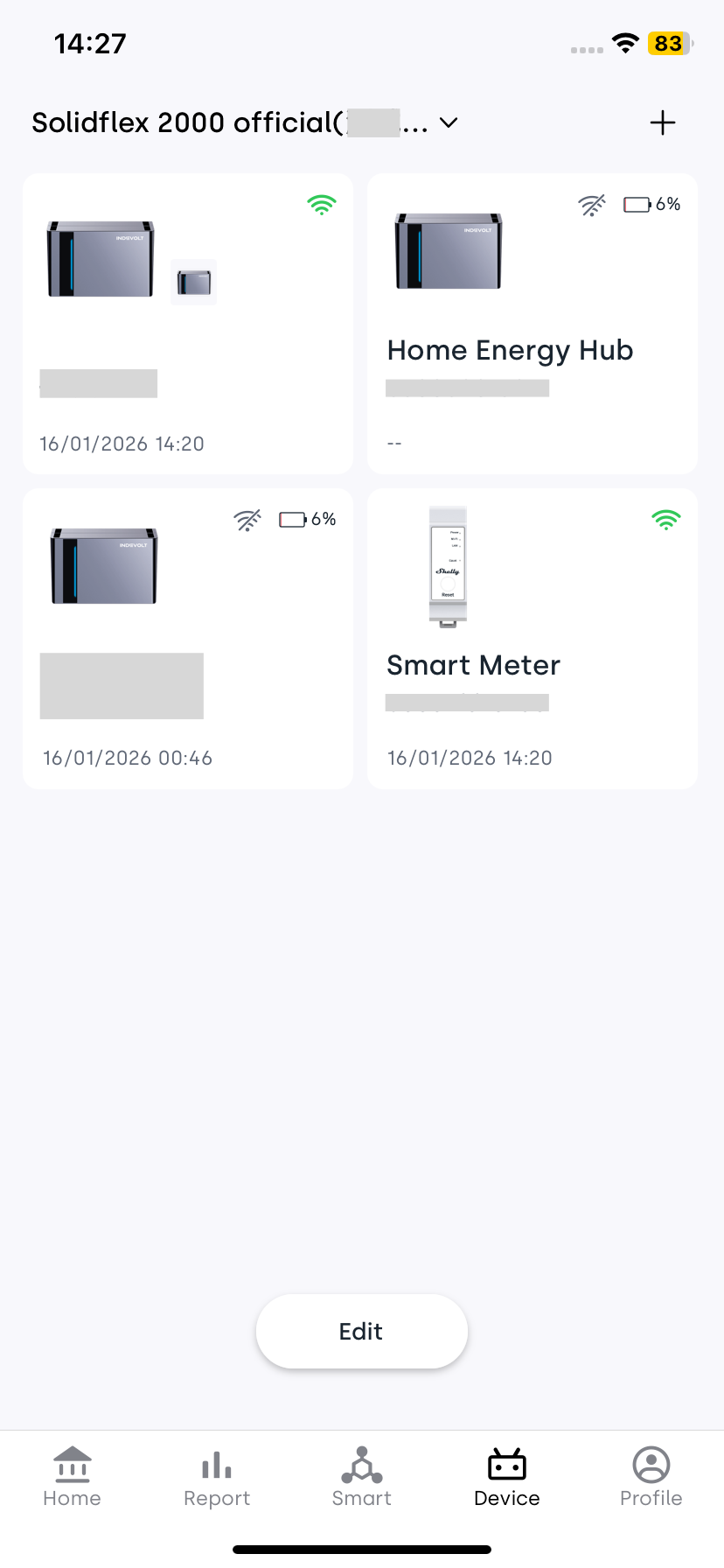
Tap the cluster card to enter the cluster details page, where you can view the main–sub device relationship, the cluster’s energy management strategy, and real-time power data.
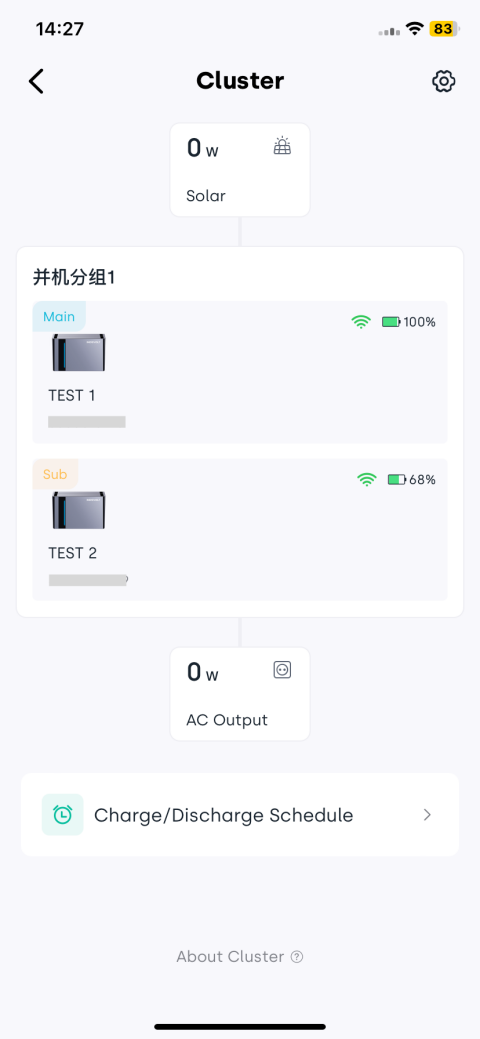
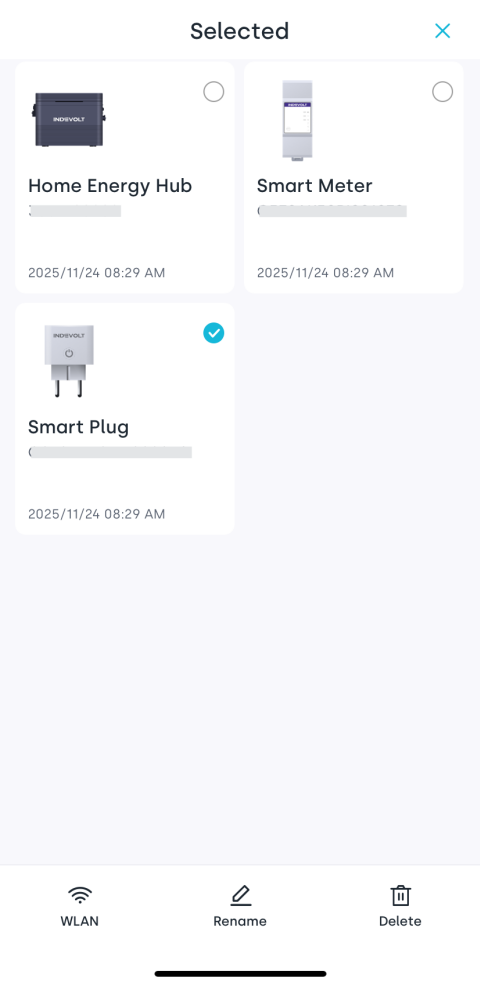
Tap the settings icon ⚙ in the upper-right corner of the details page to modify the cluster configuration or disband the cluster.